
The short answer
ERPnBox lets you give each dropdown option its own text and highlight color and turn any status field into a colored pipeline bar — choose colorful or monochromatic mode. The colors follow the value into list badges, pipeline stages and kanban columns, so your team reads status at a glance instead of word by word.
Every record in your workspace carries a status. A deal is Qualified or Negotiating. A ticket is Open or Escalated. An invoice is Draft or Paid. In a plain grey list, all of those words look identical — you read each one to know where things stand. Field and pipeline coloring turns that reading into a glance.
What is field and pipeline coloring?
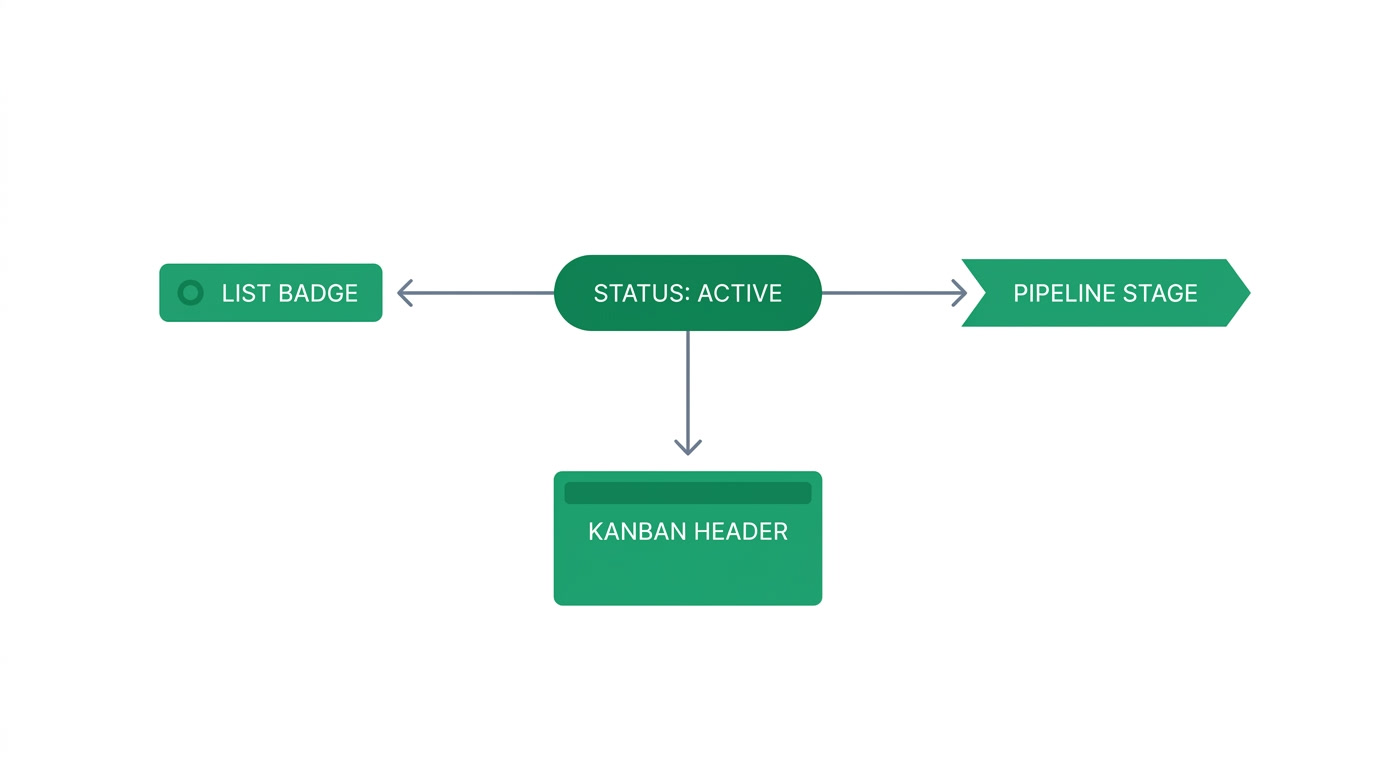
It is a way to attach color to the values in your dropdown (picklist) fields so status reads instantly. In ERPnBox you can give each option its own color, style a field's text and highlight, and turn a status field into a colored pipeline bar. Green means won, red means at risk, amber means waiting — no reading required.
Those same colors follow the value everywhere it appears: as a badge in a list view, as a stage in the pipeline bar on a record, and as a column header on the kanban board. Set the color once, and the whole workspace speaks the same visual language.
Why do status colors matter for a team?
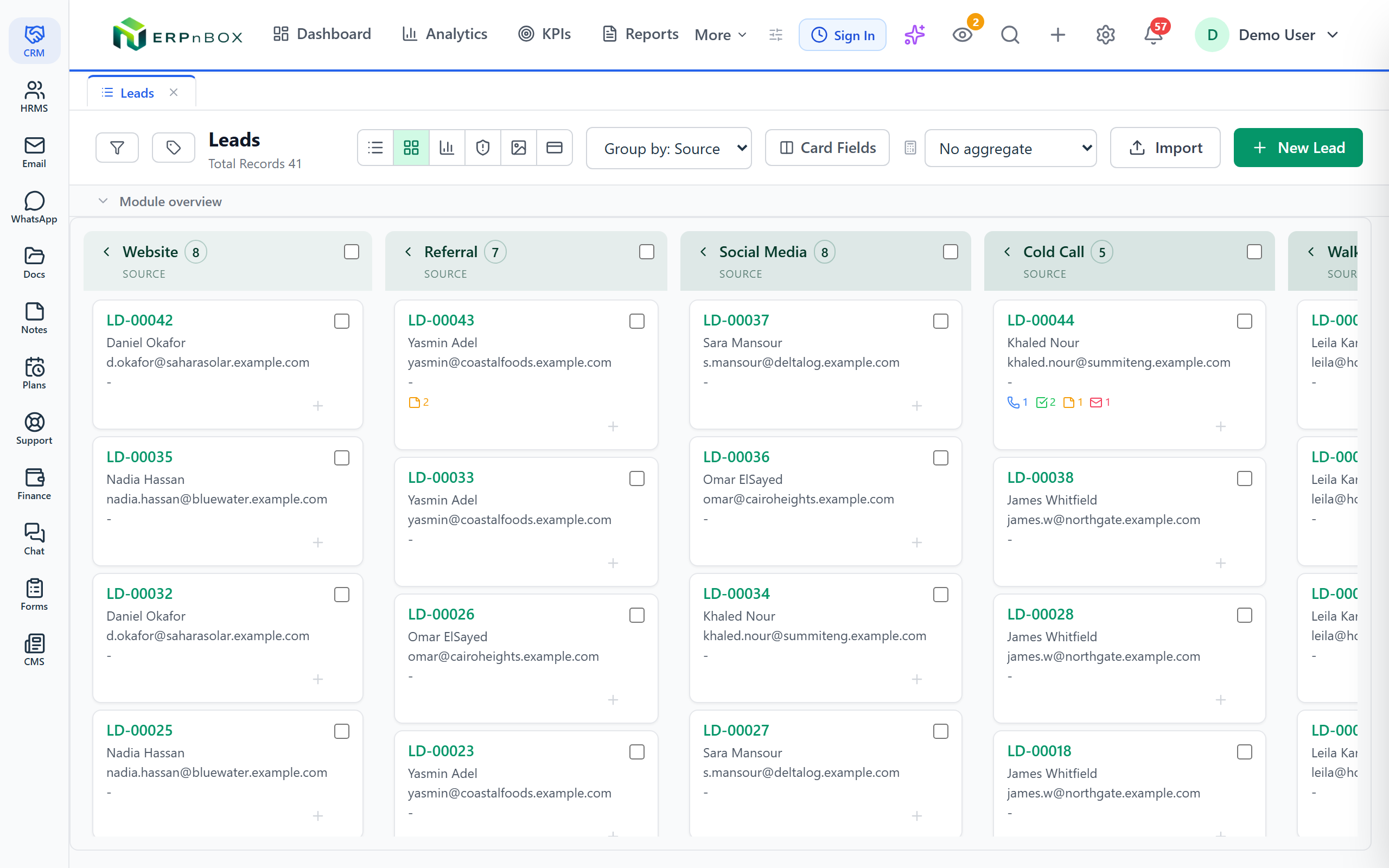
Because color is the fastest information a screen can carry. A rep scanning fifty leads spots the three red "Going Cold" rows before reading a single word, and works them first. A manager opens a deal and reads its position in the pipeline in one look. Fewer seconds per record, fewer missed signals, fewer mistakes across the day.
Color also protects against the quiet error — the one where a Paid invoice sits looking exactly like an Overdue one until someone reads it wrong on a call. When a status is red, nobody has to remember what red means. The interface remembers for them.
| Without color | With ERPnBox coloring |
|---|---|
| Read every status label to sort by priority | Red rows jump out; work them first |
| Pipeline position is a word you decode | A filled colored bar shows progress at a glance |
| Similar statuses look identical | Each option carries its own distinct color |
| New hires memorize what each status means | Color teaches the meaning on sight |
Who uses colored fields and pipelines?
Any team that lives inside a list of records. Sales teams color deal stages so the pipeline reads like a fuel gauge. Support desks color ticket priority and SLA state so escalations glow. Finance colors invoice and payment status. HR colors leave requests and onboarding steps. It is one feature that pays off in every app you run.
Because ERPnBox is one system — CRM, HR and Payroll, Finance and a dozen more apps under one login — the color you set on a status field looks and behaves the same wherever that field appears. Learn the convention once; it holds everywhere.
How do you set field and pipeline colors?
Open the field in the module editor. For a dropdown field, each option has a color swatch beside it — pick from the curated sixteen-color palette or set your own. Leave one blank and ERPnBox auto-assigns a distinct color so nothing lands grey by accident. Save, and every badge, pipeline stage and kanban column updates at once.
You can also style a field's display directly — set its text color, and switch on a highlight with its own color — so a critical field stands out on the record itself, not just its dropdown values.
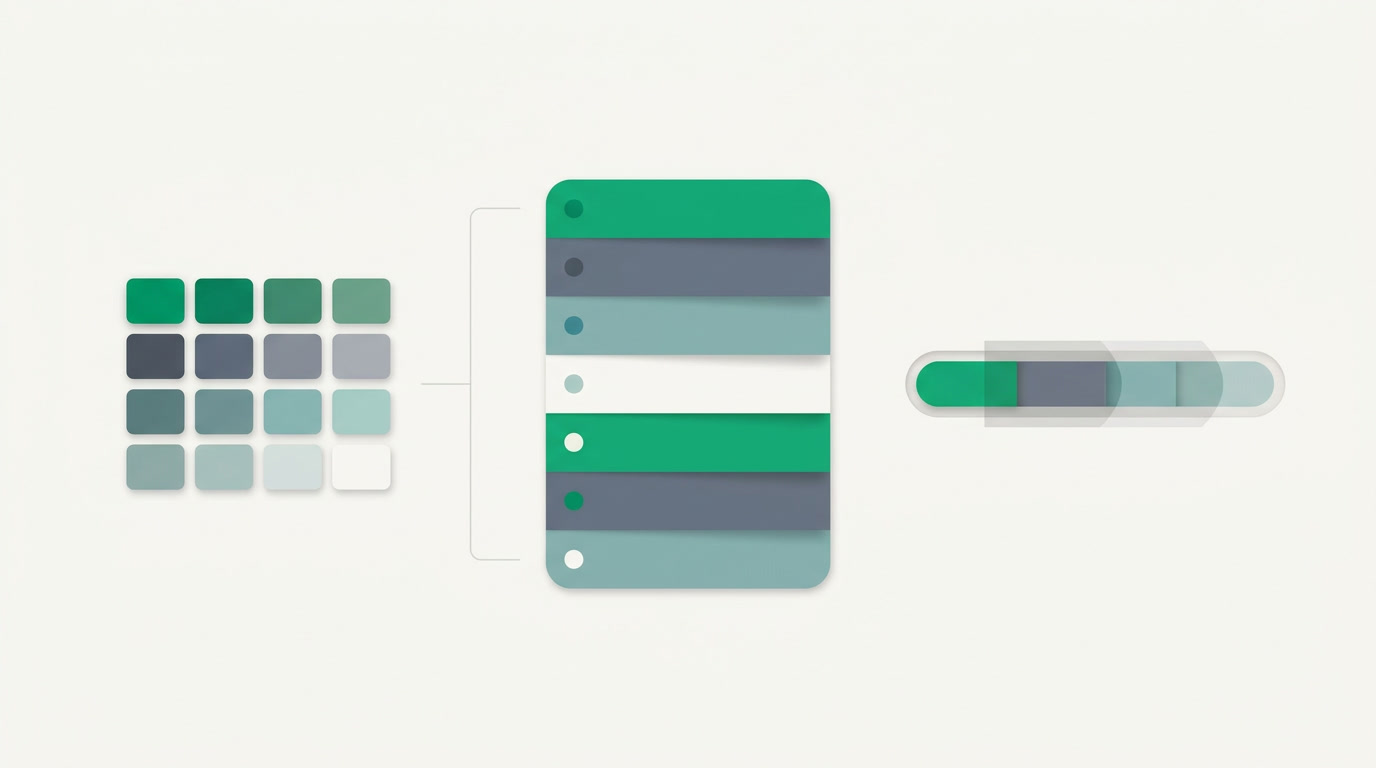
For the pipeline bar, choose a color mode. Monochromatic uses one base color, tinting completed stages lighter and lighting the current stage full-strength — clean and calm. Colorful gives every stage its own option color for maximum contrast. Pick the base color, and a live preview shows the result before you save.
- Open the module and edit the dropdown or status field.
- Assign a color to each option, or let ERPnBox pick distinct ones for you.
- Optionally set the field's text color and highlight for on-record emphasis.
- Choose a pipeline mode — monochromatic or colorful — and a base color.
- Save. Badges, pipeline stages and kanban columns all update together.
See color-coded pipelines in the CRM built for small business.
Explore the CRMDoes the color stay readable everywhere?
Yes — ERPnBox picks legible text automatically. Behind the scenes it measures each color's brightness and lays dark or white text on top so labels never wash out, whether a stage is bold and current or a faint future step. You choose the colors; the system keeps them readable.
The result is a workspace that stays calm at a hundred rows and still tells the truth at a glance — the whole point of coloring status in the first place.
Frequently asked questions
Can I set a different color for each dropdown option?
Yes. **Every option in a dropdown or status field has its own color swatch.** Pick from a curated sixteen-color palette or enter your own. Any option you leave blank is auto-assigned a distinct color, so no value quietly ends up an unreadable grey.
What is the difference between colorful and monochromatic pipeline modes?
**Monochromatic** uses one base color and tints stages by progress — completed stages lighter, the current stage full-strength, future stages faint. **Colorful** gives each stage its own option color for maximum contrast. A live preview shows both before you save.
Do colors appear in list views and on the kanban board?
Yes. A color set on an option **follows that value everywhere it appears** — as a badge in list views, as a stage in the pipeline bar on a record, and as a column header on the kanban board. You set the color once and the whole workspace stays consistent.
Will the text stay readable on any color I choose?
Yes. **ERPnBox measures each color's brightness and places dark or white text on top automatically**, so labels stay legible whether a stage is bold and current or a faint future step. You choose the colors and the system keeps them readable.
Can I color fields in apps other than CRM?
Yes. Coloring works on dropdown and status fields across ERPnBox — [Finance](/finance) invoice status, support ticket priority, HR leave requests and more. **Because everything runs under one login, the color convention you set looks and behaves the same in every app.**