Get paid, and know exactly who still owes you.
Record a payment once and split it across every open invoice. Hold advances on account, set credit limits and terms, and let overdue reminders and late fees chase the money for you.
- One payment allocates across many invoices in a single entry
- Advances sit on account until you apply them
- Credit limits and payment terms enforced at posting
- Reminders, late fees, and A/R aging run themselves
14
Money in, matched to the right invoices
A customer pays one lump sum against three invoices — you record it once and allocate the amount across all of them. Whatever is left over doesn't vanish: it posts as a customer advance and waits on account until you apply it to a future invoice. Every payment moves a balanced entry into a real ledger, so your receivables are always the truth, not a spreadsheet guess.
Chase overdue balances without lifting a finger
Set the terms, the reminder cadence, and the dunning levels once. Invoices flip to overdue on their due date, before-due and overdue reminders email customers on schedule, and configurable late fees accrue automatically for base-currency invoices. A customer who is current on an installment plan is never wrongly flagged.
01
One payment, many invoices
Allocate a single payment across every open invoice, with over-allocation rejected automatically. The unapplied remainder becomes a customer advance you can apply later, and the same logic mirrors on the payables side as vendor prepayments. Withholding tax and short-pay write-offs settle short-paid invoices cleanly.
02
Credit limits and terms that hold the line
Give each customer a credit limit and a default payment term. Posting an invoice that would push their open balance past the limit is blocked — only a finance manager can override. Terms are net-N or installment plans whose percentages must sum to 100, and the due date derives from the term when you don't set one.
03
A reconciliation workbench
See each customer's unapplied payments beside their open documents, take the suggested matches (exact amount first, then oldest due first), and apply a whole batch at once. Changed your mind? Unreconcile a single allocation and the amount returns to the advance — the original payment entry is never touched.
04
Every customer, in full view
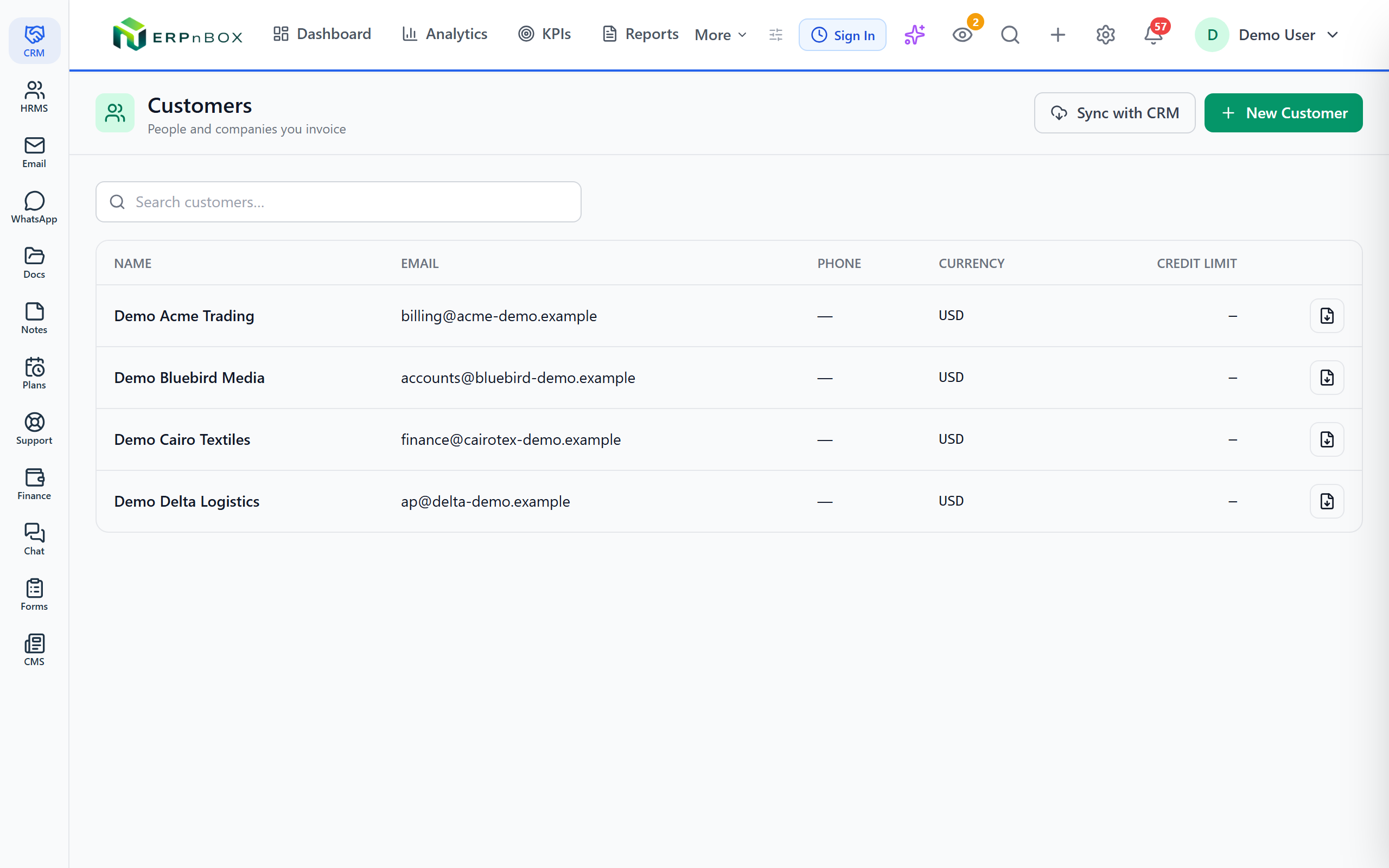
A customer 360 page shows total invoiced, paid, open balance, advances on account, and overdue count, with every invoice, payment, and credit note one click away. Hand the customer a statement as a PDF, and read A/R aging in buckets you configure yourself.
Full feature list
Everything that's inside
Receiving & allocating payments
Multi-invoice allocation | Record one payment and split it across several open invoices; over-allocation beyond the payment or an invoice balance is rejected. |
Customer advances | An unallocated remainder posts as an on-account advance and can be applied to a future invoice; the on-account balance is always visible. |
Withholding tax | Record tax withheld by the customer on a payment; it settles against receivables like cash, with a default rate you can prefill per customer. |
Short-pay write-offs | Write off a small residual so a short-paid invoice closes as paid, or write off part of an outstanding balance directly. |
Terms, limits & schedules
Credit limits | A per-customer limit blocks any invoice that would push the open balance over it; a finance manager may override. |
Payment terms | Net-N or installment plans whose percentages sum to 100; a customer's default term drives the invoice due date automatically. |
Installment schedules | Posting an installment invoice materializes its schedule lines, with the final line absorbing any rounding. |
Schedule-aware overdue | An installment invoice is flagged overdue only when the amount already due exceeds what's been paid — never for future installments. |
Collections & dunning
Payment reminders | Before-due reminders send once and overdue reminders repeat on a cadence you set, with de-duplication and a per-invoice history. |
Dunning levels & late fees | Define escalating levels by days overdue; each accrues a percentage or flat late fee once per invoice. Base-currency invoices only. |
Manual remind now | Send a reminder on demand when a phone call needs a paper trail behind it. |
Reconciliation & visibility
Reconciliation workbench | Unapplied payments beside open documents, suggested matches (exact then oldest-due), batch apply, and single-allocation unreconcile. |
Customer 360 | Invoiced, paid, open balance, advances, and overdue count in one view, with every transaction clickable through. |
Customer statement PDF | A running-balance statement you can hand the customer as a downloadable PDF. |
A/R aging | Aging in buckets you configure yourself (default 30/60/90), so you always know how old the money is. |
Frequently asked questions
Can one payment cover several invoices at once?
Yes. Record the payment once and allocate it across every open invoice. If the customer overpays, the extra is held as an advance on account and you apply it to a later invoice whenever you like.
What happens when a customer hits their credit limit?
Posting an invoice that would push their open balance past the limit is blocked. A finance manager can override for that specific invoice, so a genuine exception is still one click away.
Do overdue reminders and late fees run automatically?
Yes. Invoices flip to overdue on their due date, before-due and overdue reminders email on the cadence you set, and dunning levels accrue percentage or flat late fees once per invoice. Late fees apply to base-currency invoices only.
Will a customer on an installment plan be flagged as overdue?
Only if the installments already due exceed what they've paid. A customer who is current on their schedule is never wrongly flagged, even if the full invoice isn't paid yet.
How do I fix a payment applied to the wrong invoice?
Open the reconciliation workbench and unreconcile that single allocation. The amount returns to the customer's advance to re-apply, and the original payment entry is never disturbed.
Can I give a customer a statement of what they owe?
Yes. The customer 360 page summarizes invoiced, paid, open balance, and advances, and you can download a running-balance statement as a PDF to send them.
Run your books on ERPnBox
Real double-entry accounting in the same workspace as your CRM. Start free, no credit card.