
The short answer
Bulk actions in ERPnBox let you select many records from a list and act on all of them at once: bulk-assign to change the owner, bulk-update a single field to one value, or bulk-delete. You can also act on an entire filtered set. Filter first, review the count, then run the change.
Every CRM eventually accumulates work that has nothing to do with selling and everything to do with keeping the data honest. A rep resigns and leaves four hundred open deals orphaned. Marketing renames a campaign and now a whole segment carries a stale tag. A messy import needs the same status corrected on hundreds of rows. Done one record at a time, this is the kind of task that quietly eats a manager's week. Bulk actions turn that week into a two-minute job — you tell the list what to change, and it changes everything you selected.
What are bulk actions in a CRM?
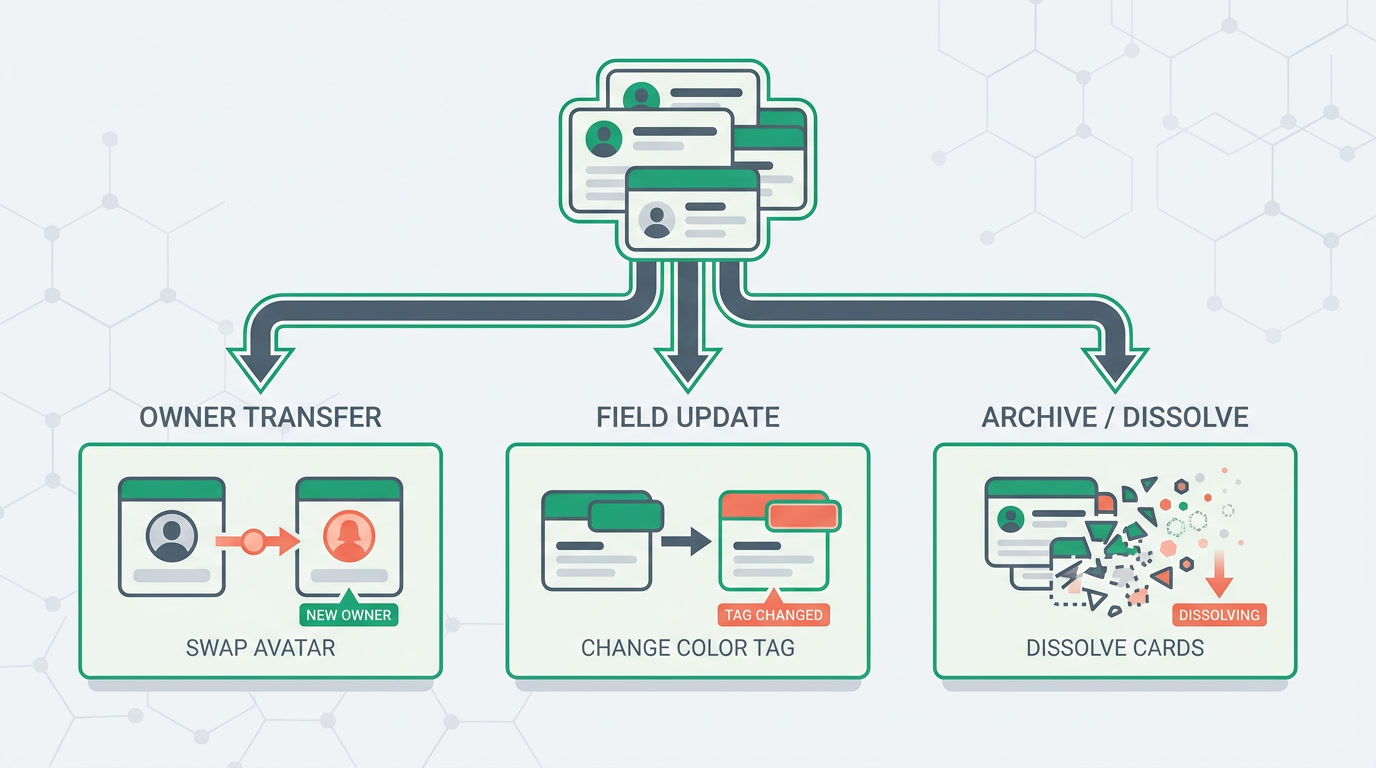
Bulk actions let you select many records on a list and act on all of them in a single step. In ERPnBox that means three things: bulk-assign to change the owner of the selection, bulk-update to set one field to one value across every selected record, and bulk-delete to remove them together. You can act on records you tick by hand, or on an entire filtered set at once.
The mechanics are the same for a module of leads, deals, contacts, or anything you've configured — because the platform is metadata-driven, you configure, you don't code. Whatever the list shows, the checkbox column and the actions bar work the same way.
Which bulk action fits which job?
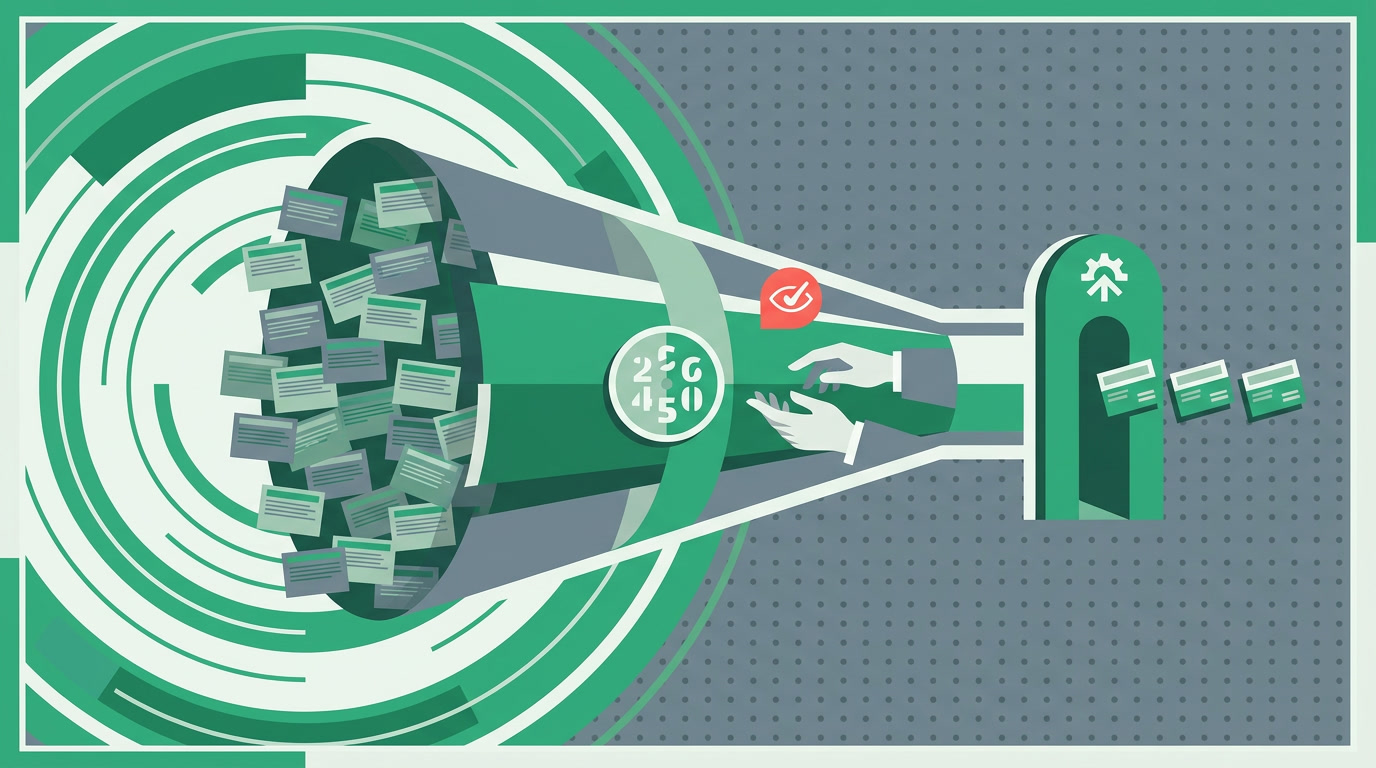
Match the action to the outcome you want. Bulk-assign moves ownership. Bulk-update changes one field's value. Bulk-delete removes records for good. The table below pairs each with the everyday situation it was built for — reach for the one that names your problem.
| Bulk action | Use case |
|---|---|
| Bulk-assign (change owner) | A rep leaves — reassign their whole open pipeline to a teammate in one move. |
| Bulk-assign to a filtered set | Route every lead from one source or region to the specialist who handles it. |
| Bulk-update a field | Re-tag a segment, correct a status left wrong by an import, or set a stage for a batch. |
| Bulk-delete | Clear out test rows, expired records, or a bad import — after you've confirmed the count. |
The quiet superpower is bulk-assign to a filtered set. Filter to "all open leads owned by the departing rep," then reassign the whole result in one action — you never tick a single box.
How do you run a bulk change safely?
Do it in three moves: filter, review, act. First narrow the list so it shows only the records you mean to touch. Then read the count and glance at the rows to confirm nothing wandered in. Only then run the action. A bulk change is fast precisely because it's blunt — the safety lives entirely in a clean selection.
- Filter first. Build the exact set with the list filters — by owner, stage, source, date, whatever isolates the group. The narrower the filter, the safer the action.
- Review the count. The list tells you how many records match. If the number surprises you, your filter is wrong — fix it before you act, not after.
- Act, then verify. Choose bulk-assign, bulk-update, or bulk-delete and confirm. For a destructive action, re-read the count on the confirmation before you commit.
- Save the filter as a view. If it's a recurring cleanup, save it as a saved view so next time the set is one click away.
The best bulk change is the one you can describe in a single sentence: these records, this field, this value. If you can't say it that cleanly, your filter isn't done yet.
How do bulk actions save real hours?
The saving isn't only the clicks — it's the mistakes you never make. Editing four hundred records by hand means four hundred chances to fumble a field or skip a row. One bulk update applies the same value to every record identically, so the batch stays consistent. Reassigning a pipeline the moment a rep leaves means no lead sits unworked while you catch up.
Bulk actions sit alongside the rest of the list toolkit. When you need to send to a set rather than edit it, mass actions from a filtered view can push a batch into a bulk email through the Campaigns connection. When two records should have been one, the duplicate manager merges them and keeps both sides' history. And every list view — all the view types — shares the same checkbox column, so the muscle memory carries across your whole workspace.
Because ERPnBox is one platform for CRM, HR, and finance under a single per-seat price, the same bulk discipline you learn here works wherever there's a list — one habit, every module.
Stop editing records one at a time
Select the set, change one thing, move on. Start free and clean up your CRM in an afternoon instead of a week.
Start freeFrequently asked questions
Can I bulk-assign an entire filtered list without ticking each box?
Yes. **Bulk-assign to a filtered set** is supported: narrow the list with [filters](/features/crm-filters-and-saved-views) until it shows exactly the records you mean, then reassign the whole result in one action. It's the fastest way to hand off a departing rep's pipeline.
What can a bulk update change?
A bulk update sets **one field to one value** across every selected record — a status, a stage, a tag, a source, or any field your module defines. It applies the same value identically to the whole batch, which is exactly what keeps the set consistent.
Is bulk-delete reversible?
Treat bulk-delete as **permanent** and confirm before you run it. The safe habit is to filter tightly, re-read the count on the confirmation, and delete only records you're certain about — test rows, expired data, or a known bad import.
How is this different from merging duplicates?
Bulk actions change **many separate records** — owner, a field, or existence. Merging is different: the [duplicate manager](/features/crm-duplicate-manager) combines **two records that describe the same thing** into one and keeps the activities, notes, and attachments from both sides. Use bulk for a batch, merge for a pair.
Can I reuse the same selection later?
Save the filter, not the selection. If a cleanup recurs, store it as a [saved view](/features/crm-filters-and-saved-views) and share it with your team. Next time the set is one click away, and the bulk action runs against the freshly matched records.