The short answer
Your CRM records can be shown seven ways: List for scanning rows, Kanban for moving deals through stages, Chart for counts and totals, Calendar for dates, Card and Hero for a visual browse, and Detail for one full record. You pick the view per module, and you can save the ones you use.
Your CRM holds one thing: records. Leads, deals, contacts, accounts. But a list of rows is only useful for some of the questions you ask of that data. "Which deals are stuck?" is a board question. "How many closed this month?" is a chart question. "What's on Thursday?" is a calendar question. The records never change — the view does. In ERPnBox, you switch how you see the same data as easily as you'd flip a page.
What are CRM view types, and why do they matter?
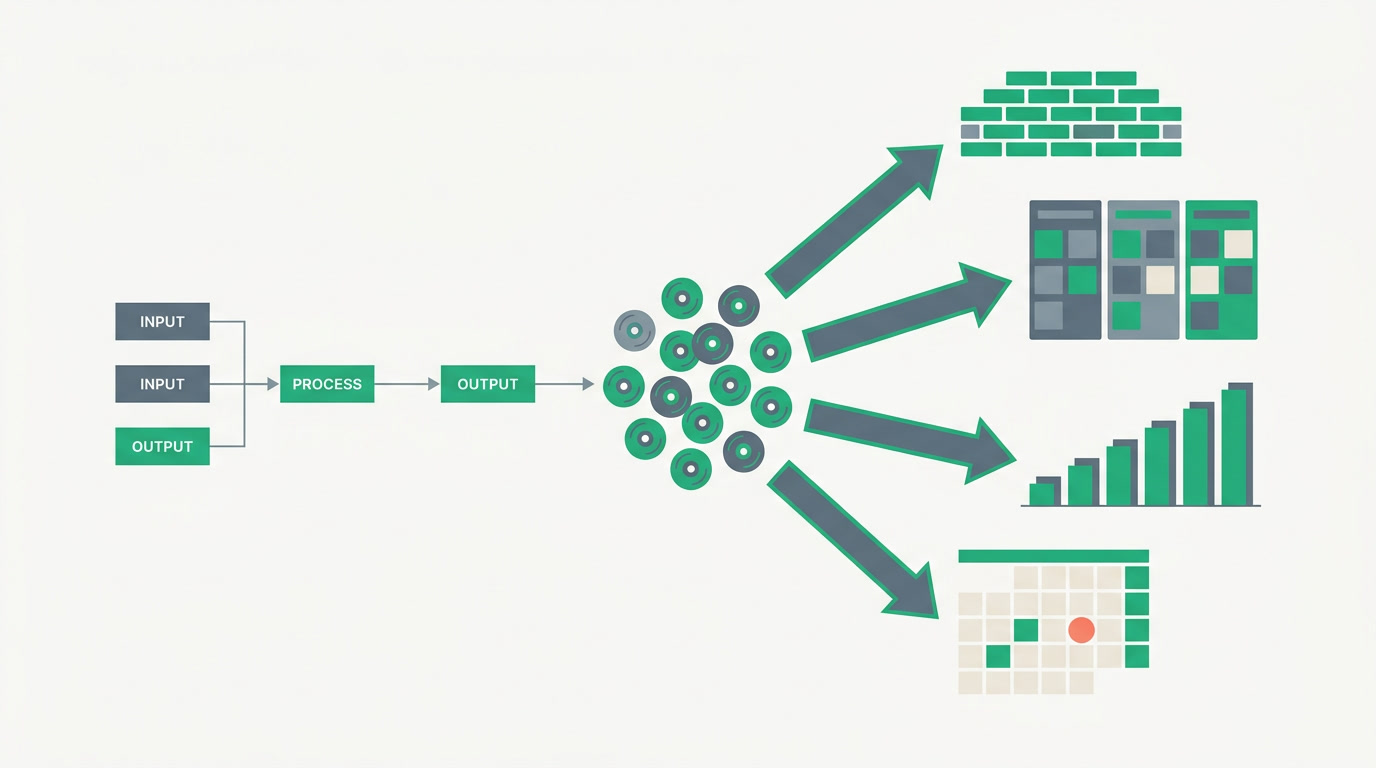
A view type is a way of laying out the same set of records for a specific kind of work. ERPnBox gives every module seven: List, Kanban, Chart, Calendar, Card, Hero, and Detail. You choose the layout that fits the question in front of you, and the data pours into that shape instantly — no export, no second tool, no waiting.
The reason this matters is simple: most teams cope by exporting to a spreadsheet the moment they need to see data differently. That copy goes stale the second someone updates the real record. When the view lives on top of your live records, the deal you drag on a board is the deal your colleague sees a minute later. One source, many lenses.
What is each view best for?
Each view answers a different kind of question. List and Detail are the workhorses you'll live in daily; Kanban and Calendar organize by stage and by date; Chart summarizes; Card and Hero make browsing pleasant. Here's the short version of when to reach for which.
| View | Best for | The question it answers |
|---|---|---|
| List / Table | Scanning, sorting, and bulk work across many records | "Show me everything, sorted my way" |
| Kanban | Pipelines and stages you drag records through | "Where is each deal, and what's stuck?" |
| Chart | Counts, totals, and simple comparisons | "How many, how much, by whom?" |
| Calendar | Records that hang on a date | "What lands this week?" |
| Card | A visual, at-a-glance browse | "Let me eyeball the set" |
| Hero | A prominent, spotlight-style layout | "Feature what matters most" |
| Detail | One record, in full, with its whole history | "Tell me everything about this one" |
List and Detail: the everyday pair
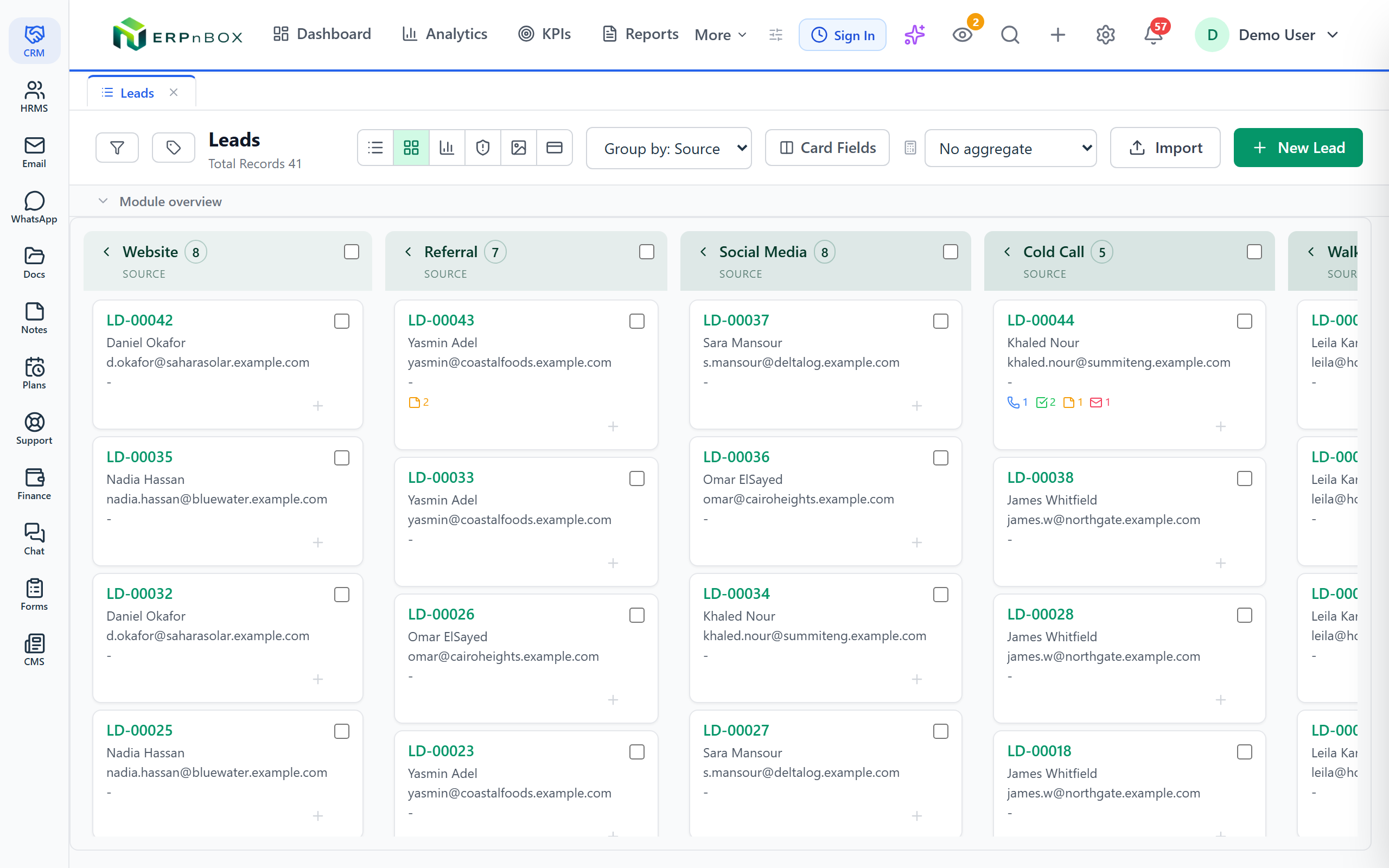
The List view is a sortable table of your records — the fastest way to scan hundreds of rows, sort by any column, and act on many at once. Pair it with per-module filters and saved filtered views and it becomes your daily command line for the module. Click any row and you open the Detail view: the full record page with every field, related records, notes, and the activity history for that one lead or deal.
Kanban and Calendar: organized by stage and by date
The Kanban view turns a status field into columns and each record into a card you drag from one stage to the next — the natural home for a sales pipeline or a support queue. The Calendar view plots any date field onto a month or week, so meetings, follow-ups, and due dates stop hiding inside rows. Both make time and stage visible in a way a flat list simply can't.
Chart, Card, and Hero: summarize and browse
The Chart view rolls the same records up into standard bar, line, and pie charts — counts, sums, and comparisons, grouped however you like. These are honest, standard charts you read at a glance; they don't predict the future, they summarize the present. Card and Hero views trade the dense table for a visual layout — a grid of cards, or a spotlight arrangement — for when browsing beats scanning.
One thing charts here do NOT do
The Chart view shows you what is and what was — the totals, the splits, the trends already in your data. It is not a forecast and not a machine-learning guess. If a chart says forty deals closed last quarter, that's forty deals that closed — nothing invented, nothing predicted.
How do you switch and save views?
Open any module's list and you'll find a view switcher at the top. Pick List, Kanban, Chart, Calendar, Card, or Hero and the records rearrange instantly. Add filters, choose your columns or grouping, and save that arrangement as a named view you can return to — or that your team can share. No setup project, no code.
- Open the module — Leads, Deals, or any record type you use.
- Use the view switcher to pick List, Kanban, Chart, Calendar, Card, or Hero.
- Set your filters, sorting, columns, or grouping so the view answers your question.
- Save it as a named view to reuse it — and open records as workspace tabs so you never lose your place.
Because these views sit on top of live records, they respect what each person is allowed to see. And because ERPnBox is one platform — CRM, HR, finance and more under one login — the same view thinking carries across your other modules, not just the CRM. You don't build any of it in code; you configure it, then get on with the work.
The record is the truth. The view is just the angle you choose to see it from.
See your data from every angle
Spin up a CRM and switch between all seven views on your own records — no spreadsheet exports, no second tool.
Start freeFrequently asked questions
Can I use a different view for each module?
Yes. The view is chosen per module and per saved view, so **Deals can default to Kanban** while Contacts stays in List and your tasks live in Calendar. Each module remembers the arrangement you set, and you can save several named views for the same module and switch between them.
Does switching views change or move my data?
No. A view is only a way of laying out the same records — switching from List to Chart never edits anything. The one exception is dragging a card in [Kanban view](/features/crm-kanban-view), which intentionally updates that record's stage, exactly as if you'd changed the field by hand.
Do the charts predict future sales?
No. The [Chart view](/features/crm-chart-view) shows standard bar, line, and pie charts built from the records you already have — counts, totals, and comparisons of what's real. There's **no forecasting and no machine-learning prediction**; it summarizes the present rather than guessing the future.
What is the difference between Card and Hero view?
Both trade the dense table for a visual layout. **Card view** shows your records as an even grid of cards for a quick browse, while **Hero view** uses a more prominent, spotlight-style arrangement to feature records. Reach for either when eyeballing the set beats scanning a long table of rows.
Can I share a saved view with my team?
Yes. Once you filter, group, and lay out a view the way you want, you can **save it as a named view** and share it, so everyone opens the same lens on the same records. Each person still only sees the records they're permitted to see, so a shared view never exposes data beyond someone's access.
How do I keep duplicates out of what these views show?
Clean data makes every view sharper. ERPnBox includes a [duplicate manager](/features/crm-duplicate-manager) that flags and merges likely duplicate records and can even block a duplicate at the moment of creation — so a board, a chart, or a list never double-counts the same lead. Pair it with [global search](/features/crm-global-search) to find records fast before you add a new one.