
The short answer
ERPnBox global search is a single box that looks across every module at once — contacts, companies, deals, tasks, and more. Type a name, phone, or number and the matching records appear grouped by module. Click one to open it. No scrolling, no guessing which list it lives in.
A customer calls. You have their name and maybe half a phone number. In that moment you don't want to remember whether they're a lead, a contact, or an account — you just want the record on screen before the small talk runs out. Global search is the box that gets you there. It reaches across everything at once, so finding a record stops being a memory test.
What is global search in ERPnBox?
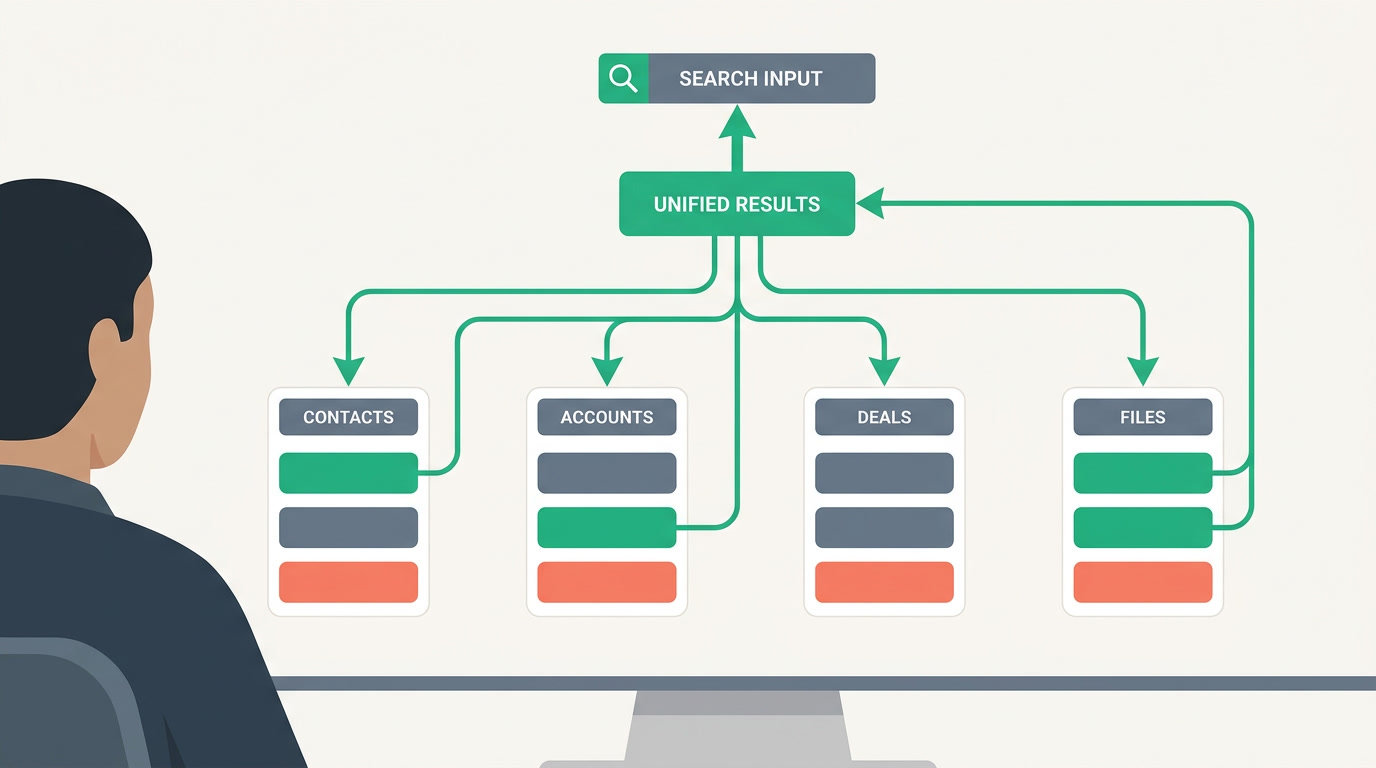
Global search is a single search box that looks across every module at once — contacts, companies, deals, tasks, and any custom module you've built. Type a few characters and matching records appear, grouped by which module they belong to. Click one and it opens. You search the whole system, not one list at a time.
It sits at the top of the screen wherever you are. You don't have to navigate to the right module first, guess the exact spelling, or remember which teammate created the record. The point is speed: one box, every record, a couple of keystrokes. When you need to narrow results within a single module instead, that's the job of filters and saved views.
Why search beats scrolling?
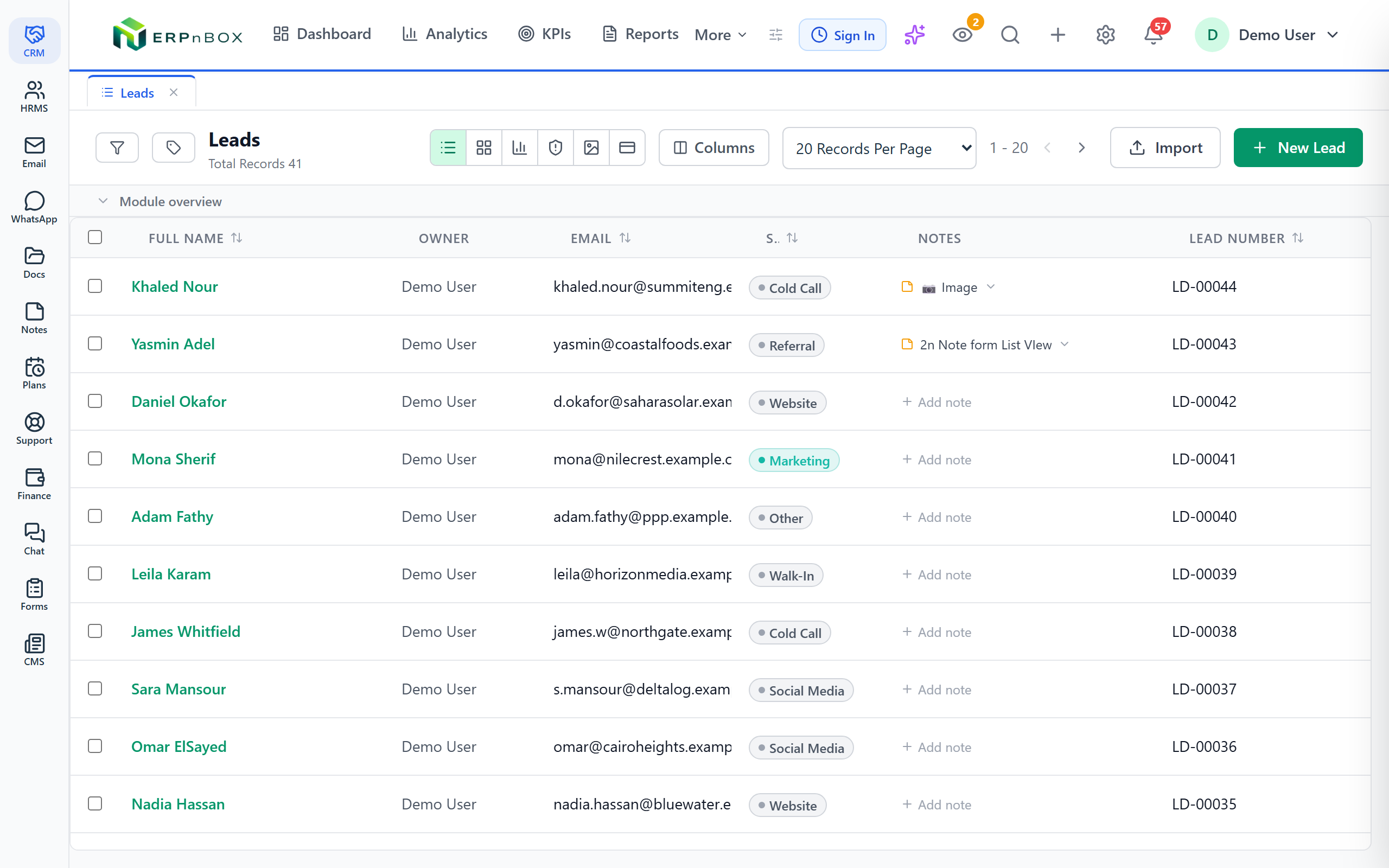
Because scrolling is how records get lost. Once a module holds a few thousand rows, paging through them to find one person is slow and error-prone — you skim past the right name twice and create a duplicate on the third try. Search removes the hunting and takes you straight to the record you meant.
There's a quieter benefit too. When people can find records instantly, they actually look before they add — which means fewer duplicates land in the first place. Search and the duplicate manager work the same side of the street: the fastest way to avoid a mess is to see what already exists.
The best-organized CRM in the world is worthless if your team can't find a customer in three seconds flat.
What does global search look through?
It looks through the records themselves — the name, key identifying fields, and the values you'd naturally type to find someone. A person's name, a company name, an email or phone number, a deal title, a task subject. Results come back grouped by module so you can tell a lead named "Sami" from a company named "Sami Group" at a glance.
| You type | Search finds | Typical use |
|---|---|---|
| A person's name | Matching contacts and leads | Inbound call, quick lookup |
| A phone number | Whoever that number belongs to | Caller ID with no name |
| A company name | The account plus related people | Account review |
| A deal or task title | That deal or activity record | Jump back to open work |
Search finds records; filters shape lists
Use global search when you know roughly who you want and need it now. Use filters when you want a whole set — "all open deals this month, owned by me." For precise conditions like ranges and "is empty," reach for advanced search operators.
Who on the team gets the most from it?
Anyone who touches a customer under time pressure. Sales reps pull up a prospect mid-call. Support and ops find the right account before a ticket goes cold. Managers jump to a deal a rep just mentioned in standup without asking which pipeline it's in. The common thread: less time locating the record, more time doing the work.
It also changes how a new hire ramps. They don't need a mental map of every module on day one — they type what the customer said and the system points them to the right place. Search is the shortcut around the org chart.
How do you get more out of global search?
Start typing the moment you have any fragment — a partial name or the last four digits of a number is usually enough to shrink the list. The habits below turn search from a rescue tool into the default way you move around your CRM. Fewer keystrokes, fewer wrong turns.
- Type the most distinctive thing first — a surname or a number beats a common first name for narrowing results fast.
- Search before you add. A five-second lookup prevents the duplicate you'd otherwise create — and keeps your reporting honest.
- Read the module label on each result so you open the account, not the lead with the same name.
- Reach for a filtered view when one match isn't enough and you need the whole set — that's a job for filters.
- Open records as tabs. Found several? Open each into its own workspace tab and flip between them instead of searching twice.
Once search is second nature, pair it with the way you like to see data — a Kanban board for pipeline, a chart for the numbers. Search gets you to the record; the view types decide how you read it.
See how fast finding a record can be
One box, every module, no code to set up. Try ERPnBox and search your own data.
Start freeFrequently asked questions
Does global search cover custom modules I built?
Yes. Because **you configure modules instead of writing code**, any module you add becomes part of the same search. Type a value and results appear grouped by module — your custom ones alongside the standard contacts, deals, and tasks.
Can I search by phone number, not just name?
Yes. Phone number is one of the most useful things to type — it's perfect for an inbound call where you have a number but no name. Even a **partial number** usually narrows the list to the right record.
What's the difference between search and filters?
Search finds one record fast when you roughly know who you want. [Filters](/features/crm-filters-and-saved-views) build a whole list by conditions — owner, date, status — and you can save that list as a view. Different jobs; use whichever fits the moment.
Will search show records I'm not allowed to see?
No. Search respects the same access rules as the rest of the system, so results only include records you're already permitted to open. A rep won't stumble onto another team's private records through the search box.
Do I need precise conditions like date ranges in search?
For that, use [advanced search operators](/features/crm-advanced-search-operators) inside a filtered view — ranges, "is empty," contains, and more. The global search box is built for quick lookups; precise multi-condition queries live in the filter panel.