
The short answer
ERPnBox filters combine a field, an operator, and a value to ask precise questions of your records. Use contains for partial text, is for exact matches, is empty to find gaps, ranges for numbers and dates, and in-list to match several values at once. Owner, team, and date filters scope by people and time. Stack filters, then save the result as a reusable view.
Everyone can use a search box. You type a name, you get the name. The trouble starts the moment your question is bigger than one name: show me every deal worth over 50,000 that no one has touched this month, owned by the north team. A search box shrugs at that. Operators answer it. In ERPnBox, a filter is just three parts — a field, an operator, and a value — and the operator is where the real thinking happens.
You don't write code for any of this. You pick the field from a list, pick the operator, type the value, and the record list updates. This article walks through the operators that matter, with concrete examples, and stays honest to what actually exists in the filter panel.
What is the difference between search and filter operators?
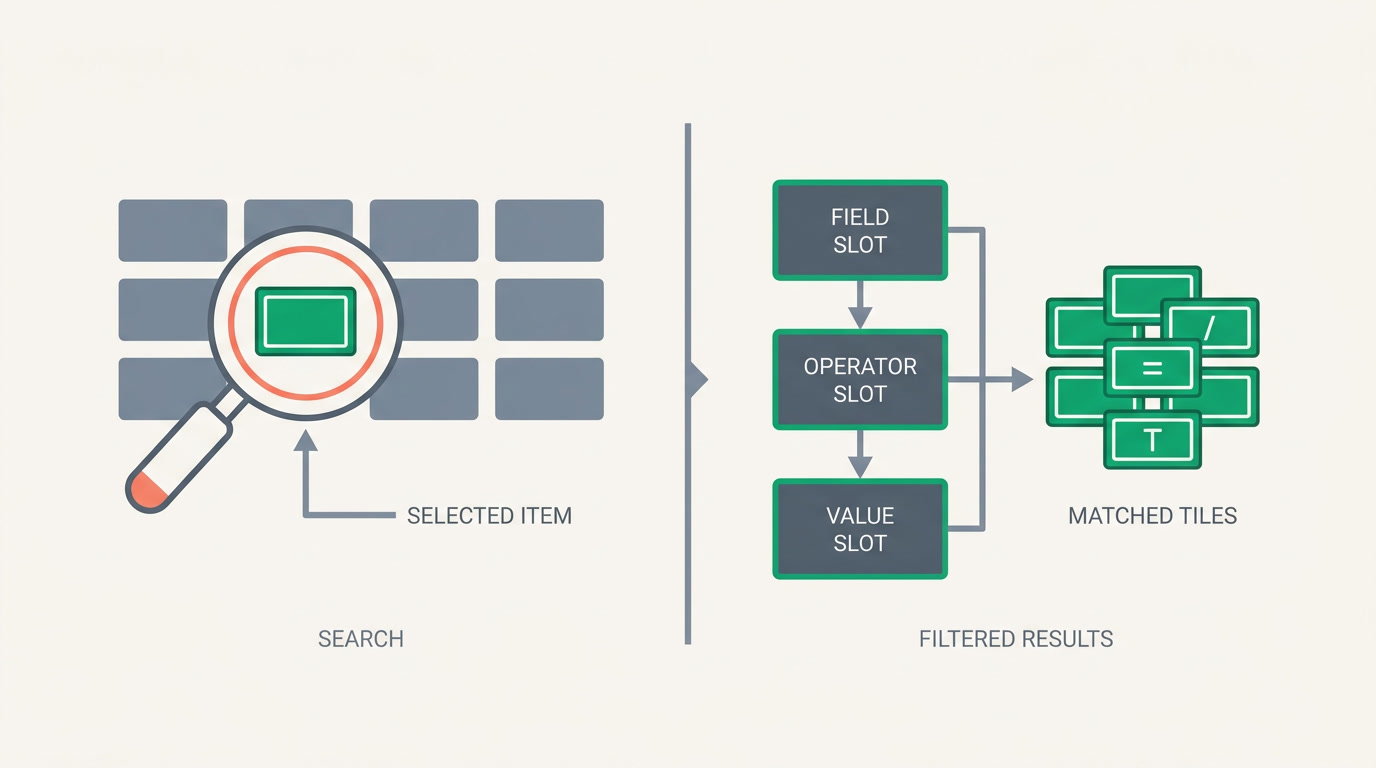
Search scans across records for text you type and hands back matches. A filter operator is a rule applied to one specific field: it decides how the field's value is compared to yours. Search finds a needle; operators describe the needle — its size, its owner, its age — so you can pull out an exact set instead of a lucky hit.
The practical difference is repeatability. A quick search is a one-off. A filter is a question you can save, name, and reopen tomorrow as a view — the same query, refreshed with today's data. That is the whole point: you build the question once and stop rebuilding it every Monday.
How do the text operators — contains, is, and is empty — work?

These three carry most of the daily load. Contains matches any record where the field holds your text somewhere inside it. Is demands an exact match. Is empty finds records where the field was never filled in — the quietest and most useful operator of the three, because gaps are where revenue leaks.
- Contains — Company name *contains* "logistics" returns "Nile Logistics", "Logistics Plus", and "Global Logistics Co" in one pass. Use it when you remember a fragment, not the whole.
- Is — Stage *is* "Negotiation" returns only that stage, nothing adjacent. Use it for clean categories where near-enough is wrong.
- Is empty — Phone *is empty* surfaces every contact you can't call. Pair it with an owner filter and you have a clean-up task list, not a complaint.
The empty field is a to-do list in disguise
Filtering for is empty on email, phone, or source turns your data's blind spots into a working list. It's the fastest way to find leads no one can follow up because a key detail was never captured.
How do range and in-list operators handle numbers, dates, and choices?
Numbers and dates rarely want an exact match — they want a boundary. Range operators (greater than, less than, between) let you say "deals above 50,000" or "closing between the 1st and the 15th." For pick-from-a-set fields, in-list matches a record if its value is any one of the several you choose — a tidy way to select three stages or four sources without three separate filters.
| Operator | Best for | Example question |
|---|---|---|
| Contains | Partial text | Company contains "trading" |
| Is / Is not | Exact categories | Stage is "Won" |
| Is empty / not empty | Finding gaps | Email is empty |
| Greater / less than | Number & date bounds | Amount greater than 50,000 |
| Between (range) | A window | Close date between two dates |
| In list | Several values at once | Source in [Web, Referral, Event] |
Ranges and in-list are where a vague ask becomes a countable list. "Big deals closing soon" is an opinion; "amount over 50,000 and close date within the next 14 days" is a filter you can act on — and hand to a rep without a meeting.
How do owner, team, and date filters scope by people and time?
Some questions are about *who* and *when*, not *what*. ERPnBox gives you filters that resolve to people and periods directly: filter by owner (the record's assigned user), by team, or by who a person reports to — and by date windows like created, modified, or a custom date field. You pick the person or period from a list; the CRM expands it into the right set of records for you.
- Owner filters answer accountability questions: "my open deals," "everything owned by a rep who just left."
- Team filters roll several people into one query so a manager sees the whole desk at once.
- Date filters answer freshness questions: "created this week," "not modified in 30 days" — the classic sign of a stalled pipeline.
A pipeline doesn't rot all at once. It rots one untouched record at a time — and a date filter is the only honest way to see it.
How do you stack filters and save the result as a view?
One filter narrows; several stacked together corner an answer. Add conditions one at a time and each new line tightens the set — field, operator, value, repeat. When the list finally shows exactly what you meant, save it. The saved view remembers every condition and re-runs it on demand with fresh data, so you never rebuild the question.
- Open a module's list and click into the filter panel.
- Add your first condition: choose a field, an operator, and a value.
- Stack more conditions until the list matches your question.
- Switch view modes — the same filtered set can show as a board, chart, or calendar.
- Save it as a named view, then reopen it any day for a live answer.
Because a filtered set is just a list of records, you can flip it into a Kanban board to work it as a pipeline, or a chart to count it — the same question, seen a different way. And once your data is this searchable, keeping it clean matters: the duplicate manager makes sure your "count" isn't quietly inflated by the same lead entered twice.
Which teams get the most out of precise filters?
Anyone who works a list. Sales reps save "my deals closing this month" and open it every morning. Sales managers stack owner and date filters to spot stalled pipeline before it dies. Operations use is-empty to find records missing a key field. Support and success filter by status and date to catch what's aging. The operators are the same for everyone — only the question changes.
Ask your data a sharper question
Build a filter, stack a few conditions, and save the view. Start free and see how fast a precise question replaces a slow scroll.
Start freeFrequently asked questions
What is the difference between the contains and is operators?
**Contains** matches when your text appears anywhere inside the field, so "logistics" finds "Global Logistics Co." **Is** requires an exact match of the whole value. Use contains when you only remember a fragment, and is when the field holds a clean category like a stage or status where a partial match would be wrong.
Can I filter for records where a field was never filled in?
Yes. The **is empty** operator returns every record whose chosen field has no value — no email, no phone, no source. Pair it with an owner filter and you get a clean-up list scoped to one person. It is the fastest way to find leads that can't be followed up because a key detail is missing.
How do I filter by a date window like the next 14 days?
Use a **range** on a date field — a between condition with a start and end date, or a greater-than on a single date. You can filter on system dates like created and modified, or on a custom date field such as close date. Combine it with an amount range to isolate, say, big deals closing soon.
Do I need to know how to code to build these filters?
No. You don't write code — you configure. Every filter is built from menus: pick a field, pick an operator, type or select a value, and the list updates. Stacking several conditions is just adding lines. When the result is right, you save it as a named view and reopen it later with one click.
Can I match several values in one filter instead of many filters?
Yes, with the **in-list** operator. Instead of three separate conditions, one in-list condition matches a record if its value is any of the choices you pick — for example source in Web, Referral, or Event. It keeps the filter tidy and is the natural choice for pick-from-a-set fields like stage, source, or status.
Will a saved filtered view update with new data?
Yes. A saved view stores the conditions, not a frozen snapshot. Each time you open it, the CRM re-runs those conditions against current records, so "deals closing this month" always reflects today's month. Build the question once; the view keeps answering it with live data every time you return.