
The short answer
The ERPnBox detail view is the full record page. Instead of one long form, fields are grouped into labelled sections and columns you can scan in seconds. Beside them sit related lists — activities, notes, attachments — plus quick actions like edit, add task, or change owner, all without leaving the record.
Open a customer, a deal, a job applicant. What you see next decides how fast you can actually help them. In ERPnBox that screen is the detail view — the full record page — and it is built to be read, not just filled in. Fields are grouped into sections and laid out in columns, so the phone number, the stage, the last note, and the open task are where your eye expects them.
What is the detail view in a CRM?
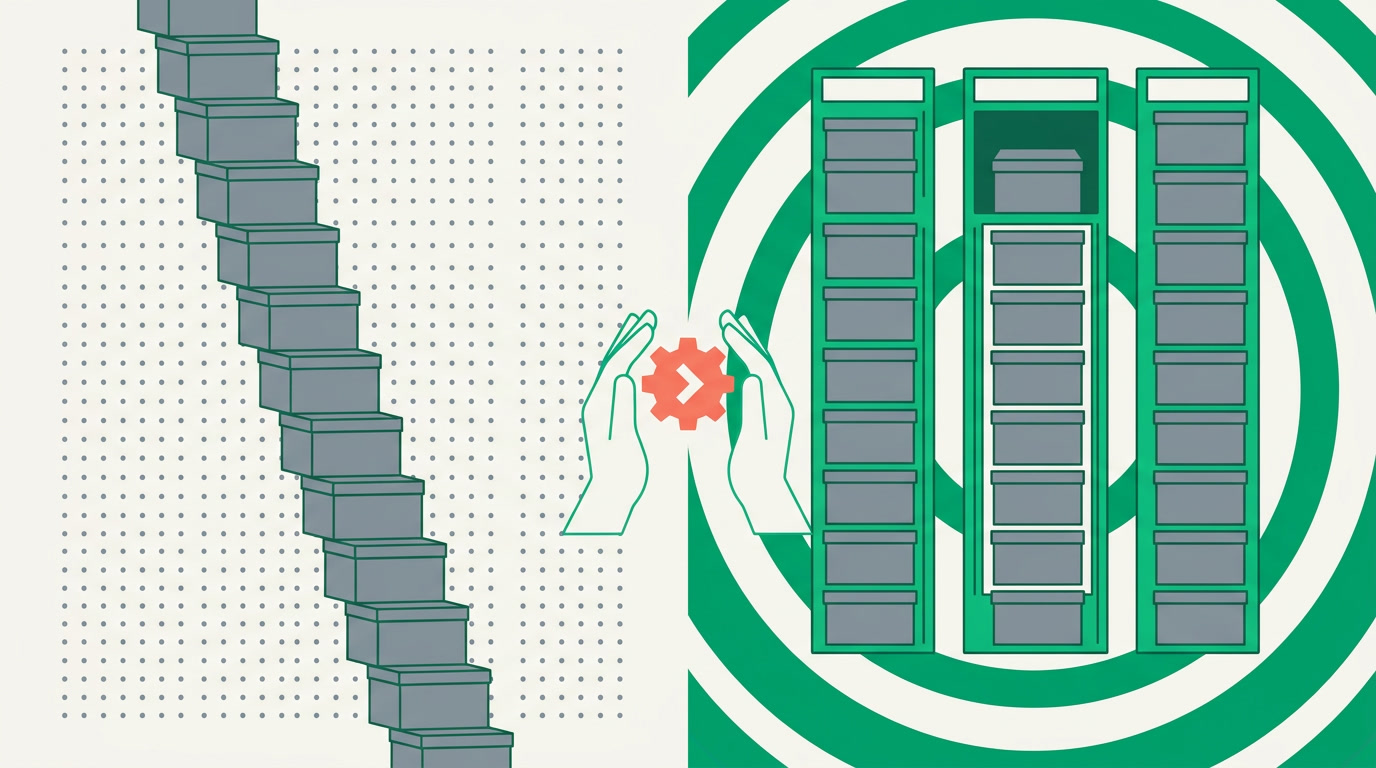
The detail view is the page for a single record — one contact, one order, one candidate. It shows every field for that record plus everything attached to it: tasks, calls, meetings, notes, and files. In ERPnBox those fields are arranged in labelled sections and columns rather than one endless form, so you read a record the way you'd read a well-set page, not hunt down a scroll.
It is one of several ways to look at your data. On a module's list you can switch to a Kanban board, a chart, a calendar, or a card wall — see all the view types. The detail view is where you go when a list has done its job and you need the whole story of one record.
Why does a well-organized record page beat a form?
A form is a data-entry tool: label, box, label, box, top to bottom. It's fine for adding a record. It's miserable for understanding one, because every field weighs the same and nothing groups. A detail page fixes that by sorting fields into sections — contact info here, deal terms there — so the important things sit together and the rest stays out of the way.
| A plain form | The ERPnBox detail view | |
|---|---|---|
| Layout | One vertical column, every field | Fields grouped into sections and columns |
| Reading a record | Scroll and search | Scan the section you need |
| Activities & notes | Somewhere else | In related lists on the same page |
| Common actions | Leave the record to do them | Quick actions in place |
The payoff is time. A rep who can find the last conversation in two seconds handles more calls and drops fewer. A record you can read is a record you act on faster — and that is the whole point of a CRM page.
How do sections and columns organize a record?
Sections are named groups of related fields; columns place those groups side by side so the page reads across as well as down. You decide the grouping — and you don't write code, you configure it. Put identity details in one section, financials in another, internal notes in a third, and the page tells a story in the order your team works.
- Sections — labelled blocks like "Contact", "Deal Terms", "Onboarding" that gather fields belonging together.
- Columns — sections and fields sit side by side, so a wide screen shows more at a glance instead of one tall strip.
- Key fields up top — the details you check most often lead the page; the long tail sits lower.
Same record, every language
The detail page works in any language and reads right-to-left where it should, so an Arabic-first team and an English-first team look at the same organized record — not two different experiences.
Where do activities, notes, and attachments live?
Right on the record, in related lists beside or below the fields. A related list is everything of one kind attached to this record — its tasks, its calls and meetings, its notes, its files. You log a call, add a note, or drop in a contract without ever opening another screen, and it stays tied to the record forever.
- Activities — tasks, calls, and meetings logged against the record, with reminders so nothing slips.
- Notes — quick written context anyone on the record can read later.
- Attachments — proposals, IDs, signed documents kept with the record they belong to.
The best record page answers your next question before you finish asking it.
What can you do without leaving the page?
The common actions sit right on the record as quick actions: edit a field, add a task, log a call, attach a file, or change the owner. Because ERPnBox opens records as workspace subtabs, you can keep three or four records open in a tab strip and move between them like browser tabs — no losing your place.
To reach a record you use the global search or a saved filtered view; to keep records clean before they ever reach a detail page, the duplicate manager catches likely duplicates at create time. The detail view is where all of that pays off — a single, tidy home for everything you know about one customer.
How do you set up your detail layout?
You shape it once and every record in the module follows. The steps are short, and you configure — no code. Group your fields, order the sections, decide what leads, and the layout applies across the module for everyone who opens it.
- Open the module and pick the layout for its detail page.
- Group fields into sections — name each section for what it holds.
- Arrange sections into columns and drag the most-checked fields to the top.
- Confirm the related lists you want — activities, notes, attachments — appear on the page.
- Save, open any record, and read it in seconds.
See your records read like a page, not a form
Start free and open a record — the columns, the related lists, and the quick actions are already there.
Try ERPnBox freeFrequently asked questions
What is the difference between the detail view and the edit form?
The **detail view** is for reading a record — fields grouped into sections and columns, with related lists and quick actions beside them. The edit form is for **changing** values. In ERPnBox you can edit fields inline right from the detail page, so you rarely need the full form just to fix one thing.
Can I choose which fields show first on the record page?
Yes. You group fields into named sections, arrange those sections into columns, and drag the fields your team checks most to the top. You configure this without writing code, and the layout applies to every record in the module.
Where do tasks, notes, and files appear?
In related lists on the same record page. Activities (tasks, calls, meetings), notes, and attachments all live beside or below the fields, so you add and read them without leaving the record.
Can I open more than one record at a time?
Yes. Records open as workspace subtabs in a tab strip, so you can keep several open and switch between them like browser tabs without losing your place.
Does the detail view work on mobile and in other languages?
The record page works in the native mobile app and on the web, and it displays in any language — including right-to-left layouts — so every team reads the same organized record.