
The short answer
The record summary tab is a single tab that briefs you the moment a record opens. It surfaces the key fields, the most recent activity, and the open tasks in one place — so instead of scrolling through sections you already know where the record stands and what to do next before you say hello.
Here is a small tragedy that plays out a thousand times a day in busy sales teams: someone opens a record thirty seconds before a call, and spends twenty-five of those seconds scrolling. Past fields they don't need. Past sections they'll never read. Hunting for the one thing that tells them where this deal actually stands. The record summary tab exists to give those twenty-five seconds back.
What is the record summary tab in ERPnBox?
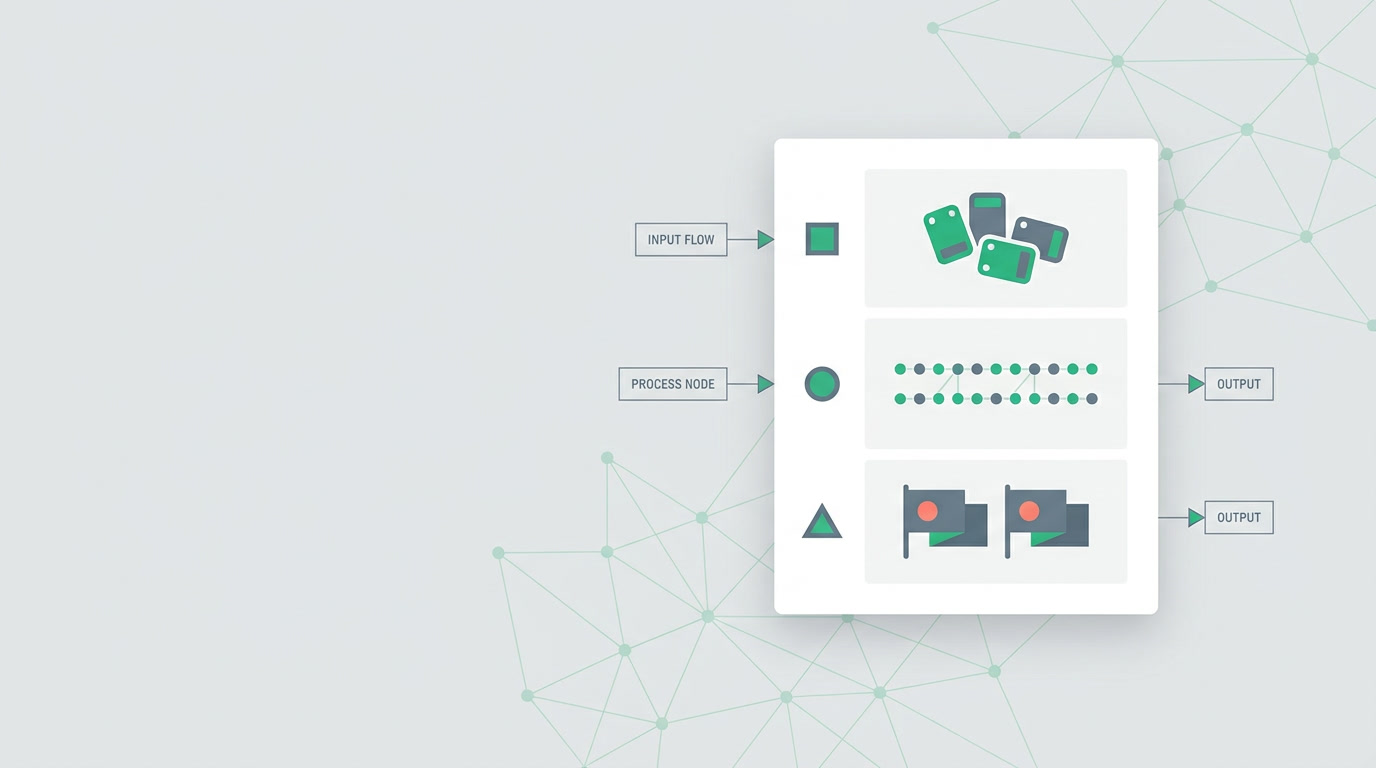
It's a single tab on the detail view that gathers a record's most important context onto one screen: the key fields, the recent activity, and the open tasks. Instead of reading the whole record, you read the brief. You're caught up the second it opens — before you dial, reply, or walk into the meeting.
Think of it as the cover page of a dossier. The full file is still there — every field, every note, every attachment — but you don't start with the file. You start with the summary, and you dive deeper only where the summary tells you to.
Why does a summary save the scroll?
Because a rich record is a long record. A mature deal or account can carry dozens of fields and hundreds of activities, and most of them aren't relevant to the next thirty seconds. Scrolling makes you re-decide, every single time, what matters. The summary decides once, up front, and shows you the answer.
There's a second, quieter cost the summary removes: the risk of missing something. When the critical field is buried three sections down, sometimes you just don't scroll far enough — and you call a client without noticing the open complaint, or the past-due task, sitting one screen below the fold. A brief that surfaces the open tasks means fewer of those small, expensive surprises.
What does the summary tab actually show?
Three bands of information, in the order you need them. First the key fields — the who, the value, the stage, the owner. Then the recent activity — the last few things that happened, so you know what was said and done. Then the open tasks — what's still owed on this record, and by when. It's a briefing, not a database dump.
| Summary band | What it answers | What it saves you |
|---|---|---|
| Key fields | Who is this, what's it worth, what stage? | Reading the full field layout every time |
| Recent activity | What just happened here? | Scrolling the record timeline end to end |
| Open tasks | What's still owed, and by when? | Missing a past-due follow-up below the fold |
The summary doesn't replace the record — it introduces it. When a band tells you something needs attention, you jump straight from the summary into the detail view or the full record timeline to act on it.
How is the summary different from the timeline?
They answer different questions. The record timeline answers "what is the full history?" — every change and activity in chronological order. The summary answers "what do I need right now?" — the current state, distilled. One is the story; the other is the headline. You read the headline first, then open the story only if you need it.
In practice they're partners. The summary hands you the top few activities; when three lines aren't enough, one click takes you to the record timeline for the whole run of events. You never lose the detail — you just stop paying for it upfront on every open.
Who feels the difference most?
Anyone who opens many records a day and has little time inside each. A rep between calls. A manager reviewing a team's pipeline record by record. A support agent picking up a ticket cold. For all of them the summary tab is the same gift: you're briefed before you engage, so the first thing the customer hears is competence, not a shuffle of papers.
And because ERPnBox is metadata-driven, the record layout that feeds all this is yours to shape — you configure it, you don't code it. The same records that power the summary also power your chart view and your saved views, so what you see on one record and what you measure across thousands stay in step.
The scroll is a tax you pay on every record you open. The summary tab abolishes it — you arrive already briefed, and the conversation starts where it should.
Open a record, and be caught up before you scroll.
See how the summary tab briefs your team in one glance across CRM, HR, and Finance — one login, one price.
Explore the CRMFrequently asked questions
Does the summary tab replace the record's full detail view?
No. It's the brief, not the file. The summary surfaces the **key fields, recent activity, and open tasks**, and the full [detail view](/features/crm-detail-view-columns) still holds every field, note, and attachment. You start on the summary and jump into the detail only where you need to act.
How is the summary tab different from the record timeline?
The [record timeline](/features/crm-record-timeline) is the **full chronological history** — every change and activity. The summary is the **current state, distilled** — what you need right now. Read the summary first; open the timeline when a few lines of recent activity aren't enough.
Can I control which fields appear as key fields?
Yes — ERPnBox is metadata-driven, so the record layout is **yours to configure, not to code**. The fields you set as important on the layout are the ones the summary leans on, which keeps the brief tuned to how your team actually works.
Does the summary show tasks that are overdue?
The summary surfaces the **open tasks** on the record, so a past-due follow-up doesn't hide below the fold the way it can on a long detail view. You see what's still owed the moment the record opens, before you engage.
Does the summary tab work across all modules?
Because the platform is metadata-driven, the same summary idea applies to your records generally — leads, deals, accounts, tickets and beyond. The bands stay the same: key fields, recent activity, open tasks. What differs is the layout you've configured per module.