The short answer
ERPnBox workspace tabs open every CRM record and editor as a tab in a strip across the top, just like a browser. You jump between open leads, deals, and editors without hitting back, and your list keeps its scroll and filters. Tabs persist through the session, so a refresh never wipes your working set.
What are workspace tabs in ERPnBox CRM?
Workspace tabs let you open records and editors as tabs in a strip across the top of your CRM, exactly the way your browser holds many pages open at once. Click a lead, it opens in a tab. Open a deal, another tab. You jump between them without ever losing your place.
Most CRMs make you drill into a record, then hit back to return to your list, then drill into the next one. Every trip resets your scroll, your filters, and your train of thought. Workspace tabs keep every open thing one click away, so the tool finally works the way you already think about your day.
Why is jumping between records without a back button better?
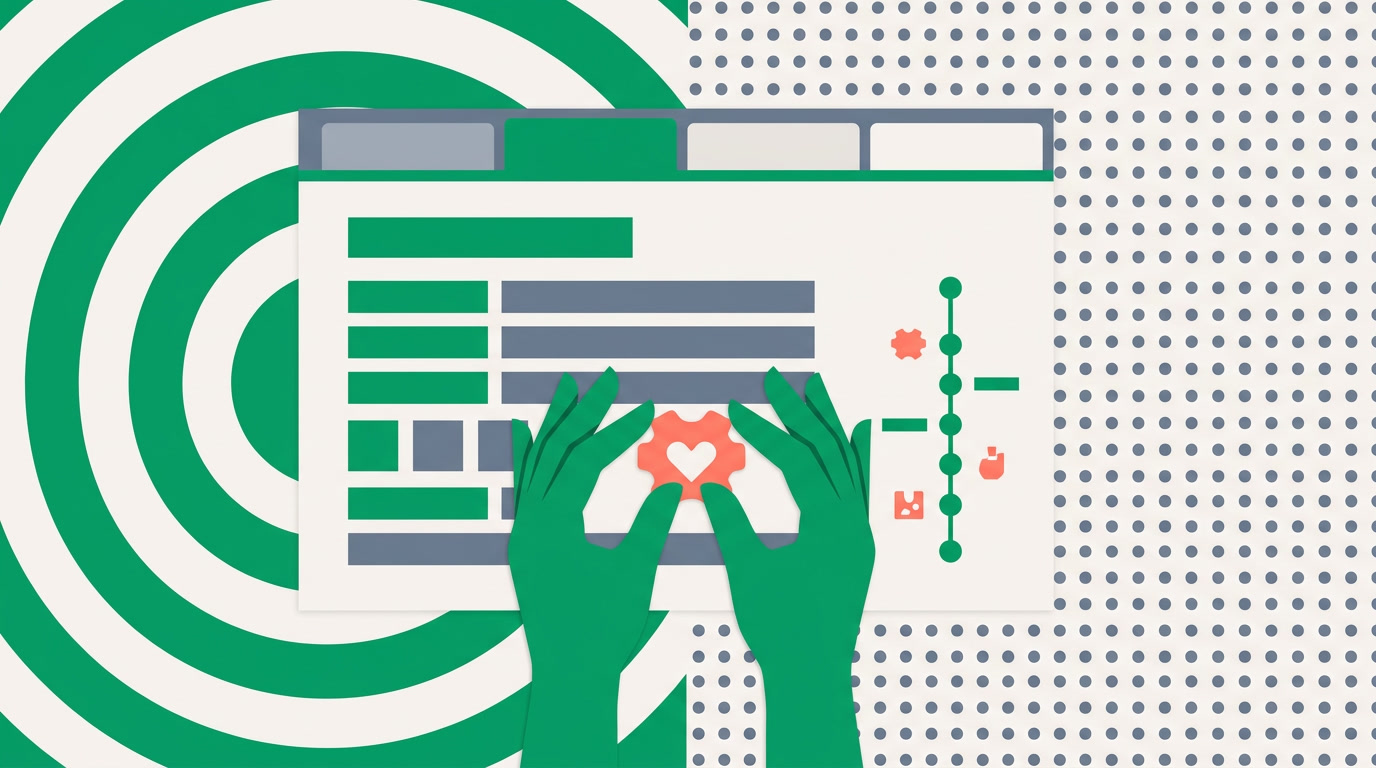
Because sales and operations work is rarely one record at a time. You compare two accounts, copy a note from one deal into another, keep a customer open while you check their last order. Full-page back-and-forth punishes that reality; tabs reward it. You hold the whole picture at once.
Think about a rep on a call. The customer asks about a second property while you have the first open. With back-button navigation you lose the first record, load the second, then re-find the first when the call turns back. With tabs, both stay open. The awkward pause disappears, and so does the risk of quoting the wrong record.
| The moment | Back-button navigation | Workspace tabs |
|---|---|---|
| Comparing two records | Load one, lose it, load the other | Both open side by tab |
| Returning to your list | Scroll and filters reset | List stays exactly where you left it |
| Mid-call lookup | Awkward pause while it reloads | Switch tab, keep talking |
| Half-finished edit | Risk of losing it on navigation | Editor waits in its own tab |
How do workspace tabs actually work?
Every URL-addressable page inside the CRM — a record detail page, an editor, a report — registers itself in the tab strip when you open it. New records slide in as new tabs. Click any tab to bring it forward; close a tab when you are done. The strip is your working set for the session, right where you can see it.
The tabs also persist across the session. Refresh the page, come back from a break, and your open tabs are still there waiting. You are not rebuilding your workspace from scratch every time the browser reloads — the CRM remembers what you had open.
A note on tabs and views
Tabs are separate from view modes. A single module list can be shown as a table, a Kanban board, a chart, a calendar, or cards — and any record you open from any of those views lands in the same tab strip. Views change how a list looks; tabs hold what you are working on.
Which teams get the most out of workspace tabs?
Anyone who touches many records in a short window. Sales reps working a call list. Support agents juggling open tickets. Ops leads reviewing a batch of records for approval. If your day is a stack of things half-done, tabs are the difference between order and constant re-navigation.
- Sales reps — keep a lead, its account, and a comparison deal open through a whole call, then close them and move to the next.
- Support and ops — hold several records open while you cross-check details, without losing the ticket you started on.
- Managers reviewing work — open a batch of records as tabs, walk through them one by one, and never lose the list you pulled them from.
How do you start using workspace tabs?
There is nothing to configure and nothing to switch on. Tabs are how the CRM behaves out of the box. You start using them the moment you open your first record. Still, a few habits make the strip work harder for you.
- Open your working list — filter it down with the filter panel or a saved view so you are only opening records that matter today.
- Click into records; each one opens as its own tab in the strip.
- Switch between tabs to compare, copy, or cross-check — your list underneath stays put.
- Close each tab as you finish it, so the strip mirrors what is genuinely still open.
- Refresh or return later — your open tabs are still there for the rest of the session.
The best software habit is the one you never had to be taught. Tabs feel obvious because you have used them your whole online life — the CRM just finally caught up.
Workspace tabs pair naturally with the rest of the CRM. Find records with global search, keep the pipeline honest with the duplicate manager, and choose how each list looks across all the view types. Tabs are the thread that ties a busy session together.
See your work the way you actually work
Open records as tabs, jump between them freely, and stop losing your place. Try the ERPnBox CRM free.
Start freeFrequently asked questions
Do I have to turn workspace tabs on?
No. Tabs are **built into the CRM by default**. Every record or editor you open joins the tab strip automatically — there is no setting to enable and no setup step. ==You get the behavior the moment you open your first record.==
Do my open tabs survive a page refresh?
Yes. Open tabs **persist across your session**, so a refresh or a short break does not wipe them. When you come back, the records you had open are still waiting in the strip instead of gone.
How is a tab different from a view mode?
A **view mode** changes how a single list looks — table, Kanban, chart, calendar, cards. A **tab** holds an individual record or editor you have opened. You can open a record from any view, and it lands in the same tab strip.
Do workspace tabs work on mobile?
The tab strip is a **desktop workspace feature**, designed for the wider screen where you juggle many records at once. The ERPnBox native mobile app gives you a focused, one-record-at-a-time flow suited to a phone.
Is there a limit to how many tabs I can open?
Open as many as your work needs. In practice the strip mirrors a **realistic working set** — the handful of records in play right now. ==Close tabs as you finish so the strip stays a true picture of what is still open.==