
The short answer
The ERPnBox calendar view shows every date-bearing record — tasks, calls, meetings, deal close dates and bookings — on one shared calendar you can read by day, week or month. Instead of checking five lists, you open one screen and see exactly what your team owes and when it is due. You switch to it from any module and can save the view.
Ask a busy sales rep what their week looks like and watch them open four things: a to-do list, an email calendar, a spreadsheet of deal deadlines, and a booking tool. Each is honest on its own. Together they leave a gap wide enough to lose a meeting in. The calendar view closes that gap by doing one simple thing — putting every date you own on the same page.
What is the CRM calendar view?

The calendar view is one of several ways to look at the same records. Instead of a list of rows, it draws your records onto a real calendar — day, week or month — placing each one on the date it carries. A call due Thursday sits on Thursday. A deal closing next month sits on that day. One glance replaces four open tabs.
It is not a separate app you have to keep in sync. It reads the same records your list and board views read, so a task you complete on the list is completed on the calendar too. You are looking at your work from a different angle, not copying it into a new place. That is the whole point of having several view types over one set of records.
Why does one calendar beat five schedules?
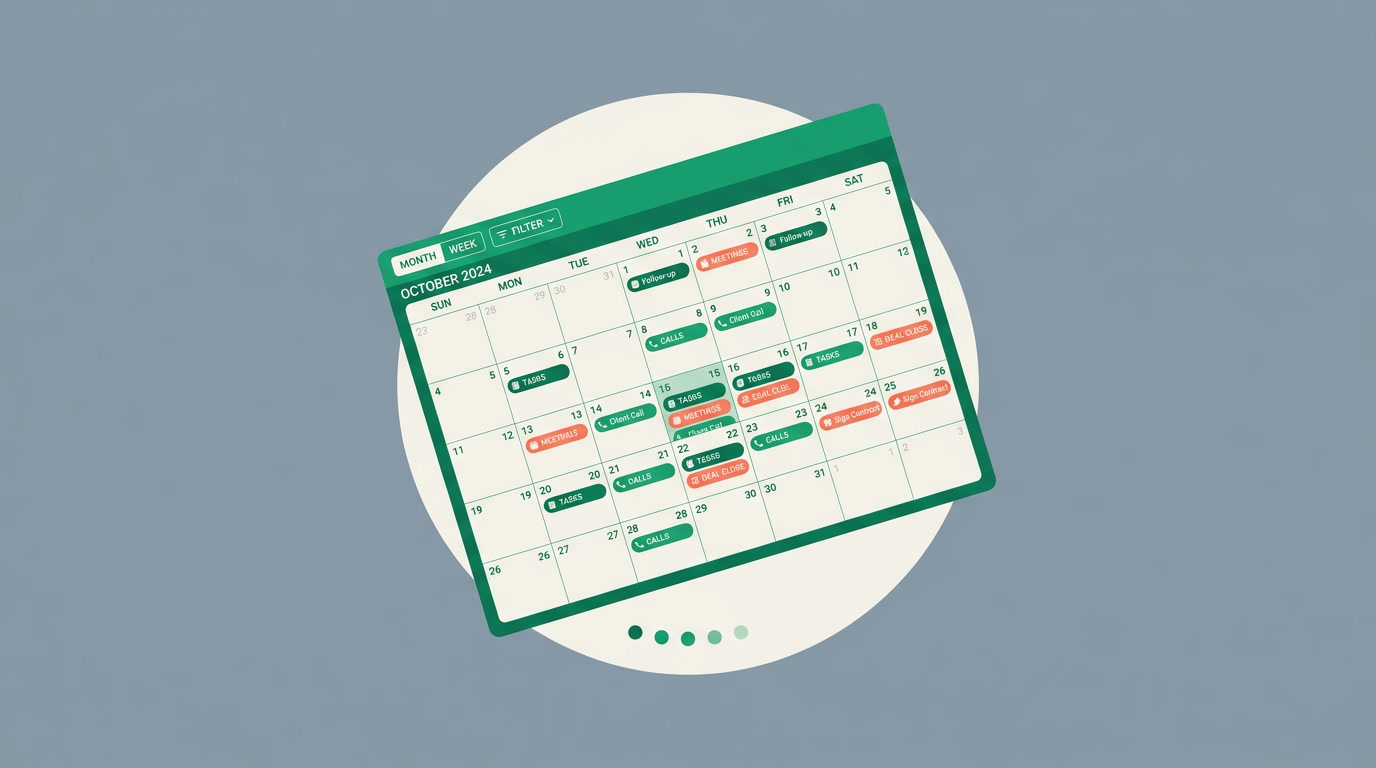
Because the cost of scattered dates is not the reading — it is the checking. Five schedules mean five places to look before you trust that nothing slipped, and people who are busy stop checking all five. One calendar removes the checking. What is due is either on the screen or it does not exist, and that certainty is what actually protects the follow-up.
A single calendar also shows you shape. A week that is empty on Monday and stacked ten-deep on Friday is a planning problem you can see and fix on Tuesday — not a surprise you discover on Friday morning. You can rebalance a week you can actually see. A pile of separate lists never gives you that shape; it only gives you the next overdue item, one panic at a time.
Which records show up on the calendar?
Any record that carries a date can live on the calendar. That naturally covers your activities — tasks, calls and meetings logged against a customer — but it goes further, because a deal has a close date and a booking has a slot. If a record answers the question "when?", the calendar can place it.
| Record type | The date it carries | What the calendar tells you |
|---|---|---|
| Tasks | Due date | What you owe and when it is due |
| Calls | Scheduled time | Who you are meant to be calling today |
| Meetings / events | Start time | Where your day is already committed |
| Deals | Close date | Which deals need a push this week |
| Bookings | Slot date | Where appointments actually land |
Because activities carry reminders and notifications, the calendar is not only a picture of the future — it nudges you toward the parts that matter. You see the week laid out, and the things that are due soonest still make noise on their own.
Who on the team actually needs this?
Everyone whose week is defined by dates rather than tickets. A sales rep uses it to see the day's calls and the deals closing this month in the same frame. A sales manager uses it to spot a rep whose Friday is empty while their pipeline is full. Anyone running appointments — service, onboarding, consulting — uses it so no booking hides in a list.
One view, not a new habit
The people who benefit most are usually the ones already drowning in tools. The calendar view wins them over not by adding another place to check, but by replacing several of them with one screen they already trust.
How do I switch to the calendar view?
You do not build anything or write code — you configure. On any module's list, the view switcher lets you flip from the table to the calendar the same way you would flip to a Kanban board or a chart. Pick the calendar, choose the date field it should read, and your records land on their days.
- Open the module you care about — Deals, Activities, Bookings — and find its list.
- Use the view switcher and choose the calendar view.
- Tell it which date field to read (due date, close date, slot).
- Switch between day, week and month to match how you plan.
- Narrow it with filters — owner, date range, stage — then save the view so it opens the same way tomorrow.
Two habits make it stick. First, save a filtered calendar — "my calls this week" or "team deals closing this month" — so you land on the right slice instead of the whole firehose. Second, keep records honest: a calendar is only as good as the dates you put on them, so clean data upstream (helped by the duplicate manager) keeps the picture true.
A schedule you have to assemble is a schedule you will eventually mistrust. A calendar that assembles itself is one you actually plan against.
How does the calendar sit next to the other views?
The calendar answers "when". It is not trying to replace the views that answer other questions — it works alongside them, and you switch based on the question in your head. That is the quiet advantage of having many views over one set of records: you never migrate your data to change your perspective.
| You want to know… | Reach for |
|---|---|
| When is this due? | Calendar view |
| What stage is each deal in? | Kanban board |
| How are the numbers trending? | Chart view |
| Where is one specific record? | Global search |
Use the calendar when time is the thing you are managing. For everything else, one of the other view types is a click away — same records, different question.
See your whole week on one page
Bring tasks, calls, meetings, deal dates and bookings onto one calendar you can actually plan against.
Start freeFrequently asked questions
Does the calendar view show more than just meetings?
Yes. Any record that carries a date can appear on it — **tasks and their due dates, calls, meetings, deal close dates and booking slots**. The point is exactly that it is not limited to meetings; it gathers every date-bearing record onto one surface so you stop checking several places at once.
Can I filter the calendar down to just my own dates?
Yes. The same **filters and saved views** you use elsewhere apply here — narrow by owner, date range, stage or any field, then save it. A view like "my calls this week" opens the same way every time instead of showing the whole team's schedule.
Do I have to set up a separate calendar app?
No. The calendar view reads the records you already have — you do not copy or sync anything. **You don't write code, you configure**: pick the calendar from the view switcher, tell it which date field to read, and your existing records appear on their days.
Can I view by day, week and month?
Yes. You switch between **day, week and month** to match how you are planning — a tight day view for today's calls, a month view to see which deals close before quarter-end. It is the same records seen at different zoom levels.
Is the calendar available on the mobile app?
ERPnBox ships a native mobile app for staying on top of records on the go. Where a view is available on mobile, it reads the same records as the web. For the fullest calendar planning experience — day, week and month side by side with filters — the web app gives you the most room to work.