
The short answer
Card view shows CRM records as visual cards — an image plus a few key fields — in a grid, instead of table rows. It's ideal for anything you recognize by sight: properties, products, candidates. You pick the image field and the key fields, save it as a view, and switch back to a table any time. Same records, different look.
A row in a table is efficient. It is also, for many kinds of records, a lie about how your team actually thinks. Salespeople picturing a property think in floor plans and photos, not in cell B7. Recruiters picture a face and a title. Product managers picture the box on the shelf. The Card view in ERPnBox lays every record out as a visual card — an image plus the two or three fields that matter — so the way you look at your data finally matches the way you hold it in your head.
What is the Card view in ERPnBox CRM?
The Card view is one of the display modes for any module's records. Instead of rows, it shows each record as a visual card — a lead image at the top and a handful of key fields beneath it — arranged in a responsive grid. You switch to it from the same view toolbar that holds List, Kanban, Chart, and Calendar, and you can save it as a named view.
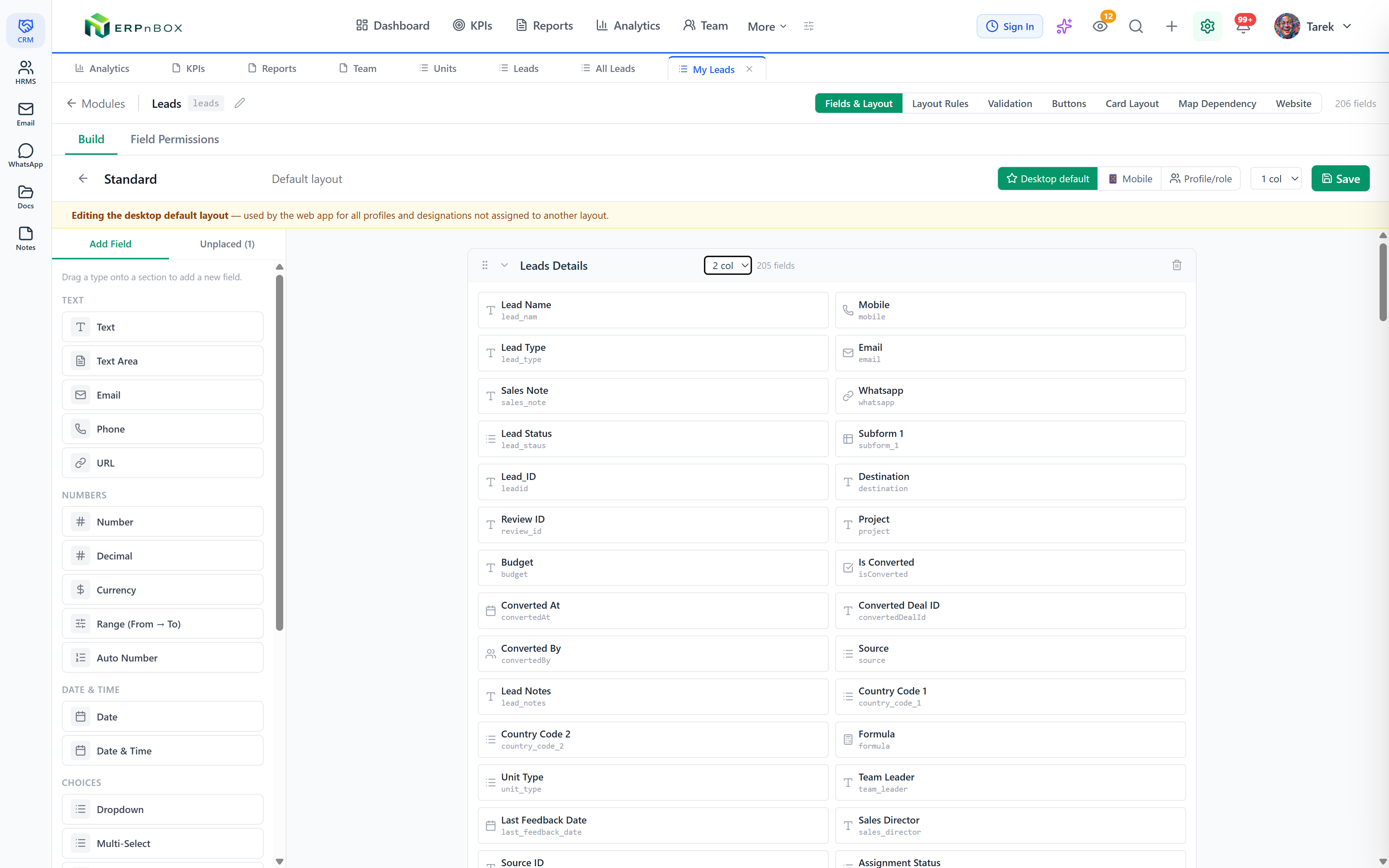
Because ERPnBox is a configure-not-code platform, the card is built from the fields you already have on the module — no template files, no developer. You point at which field is the image and which fields belong on the face of the card, and the grid renders. It is one of the several view types that share the same underlying records, so nothing you do in Card view forks your data — it is the same list, dressed for a different job.
When do cards beat a table?
Cards win whenever the record is something a human recognizes by sight — a property, a product, a candidate, a vehicle, a venue. A table forces you to read; a card lets you scan. When the image carries most of the meaning, a wall of cards is faster to judge than forty rows of text, and it feels like browsing rather than auditing.
Tables still win when you need to compare many fields at once, sort by a number, or export. The honest rule: pick the view for the task, not for the module. Here is where each one earns its keep.
| The job you're doing | Best view | Why |
|---|---|---|
| Browsing properties or products by look | Card | The image does the deciding |
| Comparing 8+ fields, sorting by amount | List / Table | Dense, sortable, exportable |
| Watching a deal move through stages | Kanban | Drag between pipeline columns |
| Seeing totals and trends | Chart | Standard bar, line, and pie |
| Scheduling by date | Calendar | Records sit on their dates |
A quiet trick
You don't have to choose forever. Save a Card view for the browsing part of the day and a List view for the reporting part, on the same module. Switching is one click, and the records underneath never change.
How is the card layout chosen?
You choose the card layout by picking, from the module's own fields, which one is the image and which two-to-four fields sit on the card face. There is no code and no separate template — you configure it against fields that already exist. Save the arrangement as a view and it opens the same way every time, for everyone you share it with.
- Open the module's list and switch the view mode to Card from the view toolbar.
- Pick the image field — the picture, logo, or attachment that becomes the top of every card.
- Choose the key fields to show on the card face (for a property: price, bedrooms, status).
- Apply any filters and a saved view so the grid shows only the segment you care about.
- Name and save the view so the team lands on cards, not a spreadsheet.
Records with no image still render as a clean card with a neutral placeholder, so a half-photographed catalogue never looks broken. Open any card and you land on the full record detail page — the card is the doorway, not the destination.
Which teams get the most from Card view?
Any team whose records are visual or people-shaped. Real-estate teams browse inventory by photo. Product and catalogue teams scan the shelf. Recruiters shortlist by face and title. Field and asset teams recognize equipment on sight. If your team squints at a table trying to remember which row was which, cards are the fix.
The best interface is the one that argues least with how the user already pictures the thing. A card of a house looks like a house.
And because the card, the Kanban board, the chart, and the table are all the same records seen differently, the duplicate manager keeps that shelf clean underneath — one product, one card, no accidental twins. You configure the look once and the whole team inherits it.
See your records as cards, not rows
Spin up your CRM, add a few records with images, and flip to Card view in a click.
Start freeFrequently asked questions
Does Card view change or copy my data?
No. Card view is only a **display mode** over the same records. Switching between cards, list, Kanban, and chart never forks, copies, or edits anything — it just re-dresses the identical set of records for a different task.
What if a record has no image?
It still renders as a **clean card** with a neutral placeholder in the image slot, so a partly photographed catalogue never looks broken. The key fields you chose still show on the card face as normal.
Can I save a Card view and share it with my team?
Yes. Name and save the arrangement as a view, and teammates land on the same cards with the same fields. You can keep a saved **Card view** for browsing and a separate **List view** for reporting on the same module.
Do I need a developer to set up the card layout?
No. You **configure, not code**. You pick which field is the image and which fields sit on the card face from the module's existing fields — no template files and no developer required.
Can I filter which records appear as cards?
Yes. Apply the same filters and saved views you use elsewhere, then the grid shows only that segment as cards — for example, only available properties or only in-stock products. Filters and view mode work together.