
The short answer
The Calendar view in ERPnBox lays any date-based records — tasks, calls, meetings, deals by close date, bookings — onto a month or week grid. Pick the date field to plot by, switch from the same list you already use, and see when work is due instead of scrolling a list to find out.
A list is honest about what you have to do. It is silent about when. You scroll a hundred rows of tasks and the one that mattered — the follow-up due this afternoon — sits somewhere between row forty and row fifty, indistinguishable from the follow-up due next month. The Calendar view fixes that by putting every date-based record where a human brain already looks for time: on a calendar.
What is the Calendar view in ERPnBox?
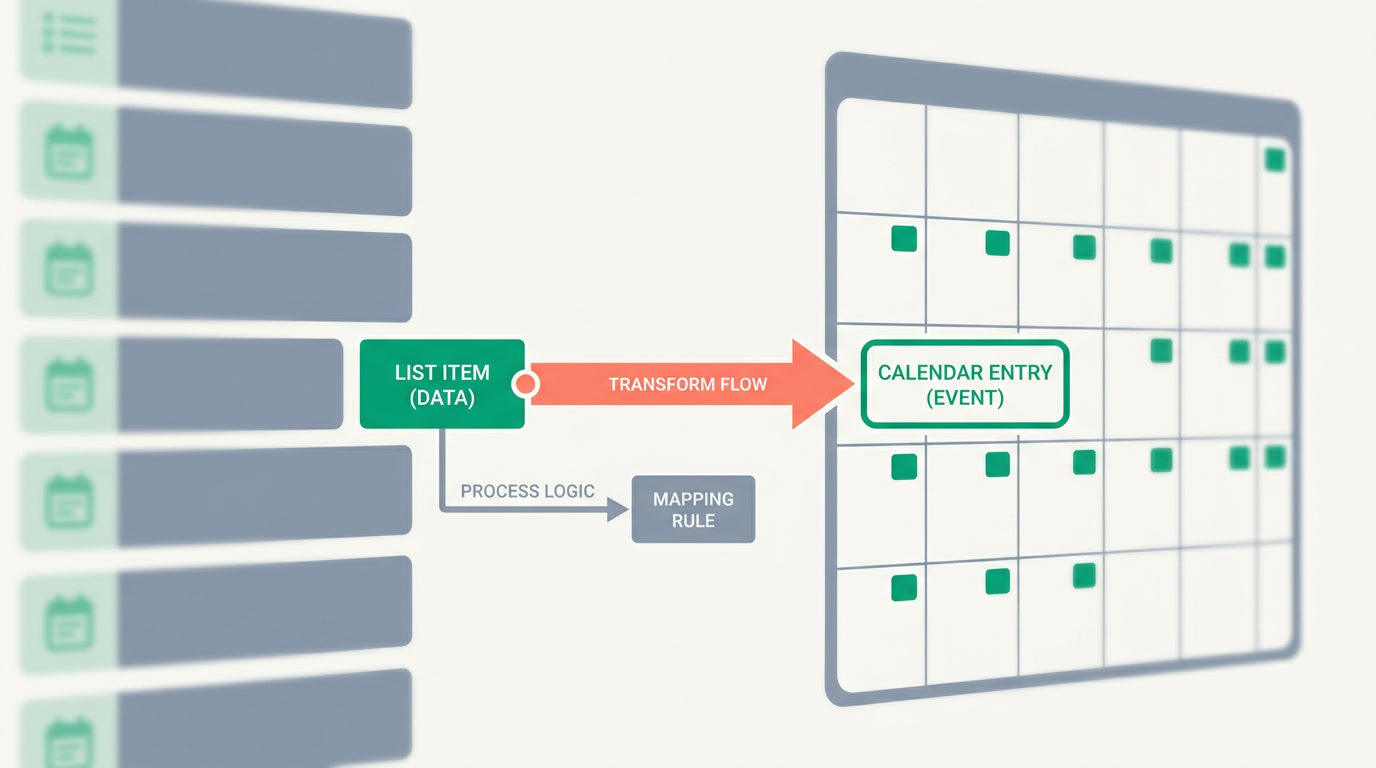
The Calendar view is one of the ways you can look at any module's records — the same records you see as a list, drawn instead on a month or week grid by a date field you choose. A task lands on its due date, a meeting on its start, a deal on its expected close. You switch to it from the same view bar you use for the other view types, and you can save it so it opens that way next time.
It is not a separate calendar app you have to keep in sync. It is your CRM data, seen through a different lens. Nothing is copied, nothing drifts. Change a due date on the record and it moves on the calendar the moment you refresh.
When does seeing records on a calendar beat a list?

A calendar wins the moment the question is "when," not "what." Which deals close this week? Is Thursday already overbooked with meetings? Did anything slip past its due date and quietly go red? A list answers those by making you sort, scan, and count. A calendar answers them at a glance, because density and dates are visible before you read a single word.
| You want to… | Reach for the list | Reach for the calendar |
|---|---|---|
| Find one record by name or company | Yes — with search and filters | No |
| See how a week is loaded | No — you'd sort by date | Yes — at a glance |
| Spot deals clustered on one close date | Hard | Obvious |
| Catch a deadline before it passes | Only if you scroll to it | You see the whole month |
| Rebalance a stage or bulk-edit fields | List or Kanban view | No |
Which records can you put on the calendar?
Anything with a date field. Because ERPnBox is one platform, that stretches well past the classic diary. Activities are the obvious ones — tasks, calls, and meetings live and die by their dates. But a deal has a close date, a booking has a slot, an invoice has a due date. Point the calendar at whichever field carries the meaning for that team.
- Activities — tasks on their due date, calls when they're planned, meetings on their start time, with the reminders already attached to each.
- Deals by close date — a pipeline read as a month: where is revenue expected to land, and is one week carrying too much of it?
- Bookings and appointments — slots on the day they belong to, so double-booking is something you see instead of something you apologize for.
- Any custom module with a date — renewals, deliveries, site visits, follow-ups. If it has a date, it has a place on the grid.
One tie worth knowing
Because activities log against the record they belong to, a meeting you open from the calendar is one click from the deal or contact behind it. The calendar shows the when; the record page shows the who and why. Read more on how the two connect in calendar power.
Who on the team actually lives in the Calendar view?
The people whose day is measured in appointments and deadlines, not in row counts. A calendar earns its keep for anyone who has to answer "is my week already full?" before they say yes to one more thing.
- Sales reps — laying out their week of calls and demos, and seeing which deals are supposed to close before Friday.
- Sales managers — reading the whole team's close dates as one month to spot a light week or a crunch before it arrives.
- Operations and service — anyone running bookings, installs, or visits who cannot afford to put two things in one slot.
- Account managers — watching renewal and follow-up dates so a relationship never lapses in silence.
How do you turn on and use the Calendar view?
There is nothing to install and no code to write — you configure it. Open any module, switch the view, tell it which date field to plot by, and you're looking at your records on a grid. Save the view and it stays. Here is the whole path.
- Open the module you want — Tasks, Meetings, Deals, Bookings, or any custom one with a date.
- On the view bar, switch to Calendar — the same bar where you pick list, Kanban, chart and the rest.
- Choose the date field to plot by — due date, start time, close date, whatever carries the meaning for this team.
- Pick month or week — month for planning ahead, week for running today.
- Narrow it first if you like — apply a filter so the calendar shows only your records, one owner, or one stage.
- Save the view with a name so it opens as a calendar next time, for you or the team.
A deadline you can see coming is a plan. A deadline you discover is an apology.
Adding work is just as quick. Use fast inline add to drop a task or meeting straight onto a day, set its reminder, and it's on the calendar before you've forgotten why you opened it. Open a record and it lands in a workspace tab, so you can jump between three appointments without losing your place. And if the same lead sneaks in twice, the duplicate manager keeps your calendar from showing the same follow-up on two different days.
See your week before it sees you
Put your tasks, meetings, and deals on a calendar — and every other view besides. Start free.
Start freeFrequently asked questions
Is the Calendar view a separate calendar I have to keep in sync?
No. It is your CRM records drawn on a grid, not a copy. The same tasks, meetings, and deals you see as a **list** appear on the calendar by a date field you choose. Change a date on the record and it moves on the calendar — there is ==nothing to sync and nothing to drift==.
Can I plot deals by their close date, not just activities?
Yes. Any module with a **date field** can be shown on the calendar, and you pick which field to plot by. For deals that's usually the expected close date, which turns your pipeline into a month you can read at a glance — where revenue is expected and whether one week is carrying too much.
Can I filter what shows on the calendar?
Yes. Apply the same **filters** you use on the list — one owner, one stage, a date range — and the calendar shows only those records. You can [save the filtered calendar](/features/crm-global-search) as a view so it opens that way next time for you or the team.
Does the Calendar view work on the mobile app?
ERPnBox ships a native mobile app for working your records on the go. For the specifics of which view modes appear where, check the app on your plan — the honest answer is that the **month or week calendar is at its best on a full screen**, where a whole month is visible without scrolling.
How is the calendar different from the Kanban view?
They answer different questions. [Kanban](/features/crm-kanban-view) groups records into columns by a stage — good for moving work through a pipeline. The calendar places records by a **date** — good for seeing when work is due. Same records, two lenses; you switch between them and [every other view](/features/crm-view-types-overview) on the same bar.