
The short answer
The List view is the classic table view of your CRM records: rows are records, columns are fields you choose and reorder with the column chooser. Sort by any column, filter to the rows you want, act on records inline, and bulk-edit many at once. Reach for it when scanning or working across many records, then save the setup as a reusable view.
Some records you study one at a time. Most records you scan a hundred at a time. The List view is the lens for the second job: a plain, sortable grid where every row is a record and every column is a field you chose to see. It is the view your team already knows how to read, because it looks like the spreadsheet they left behind — only this one keeps its own data honest.
What is the List view in ERPnBox CRM?
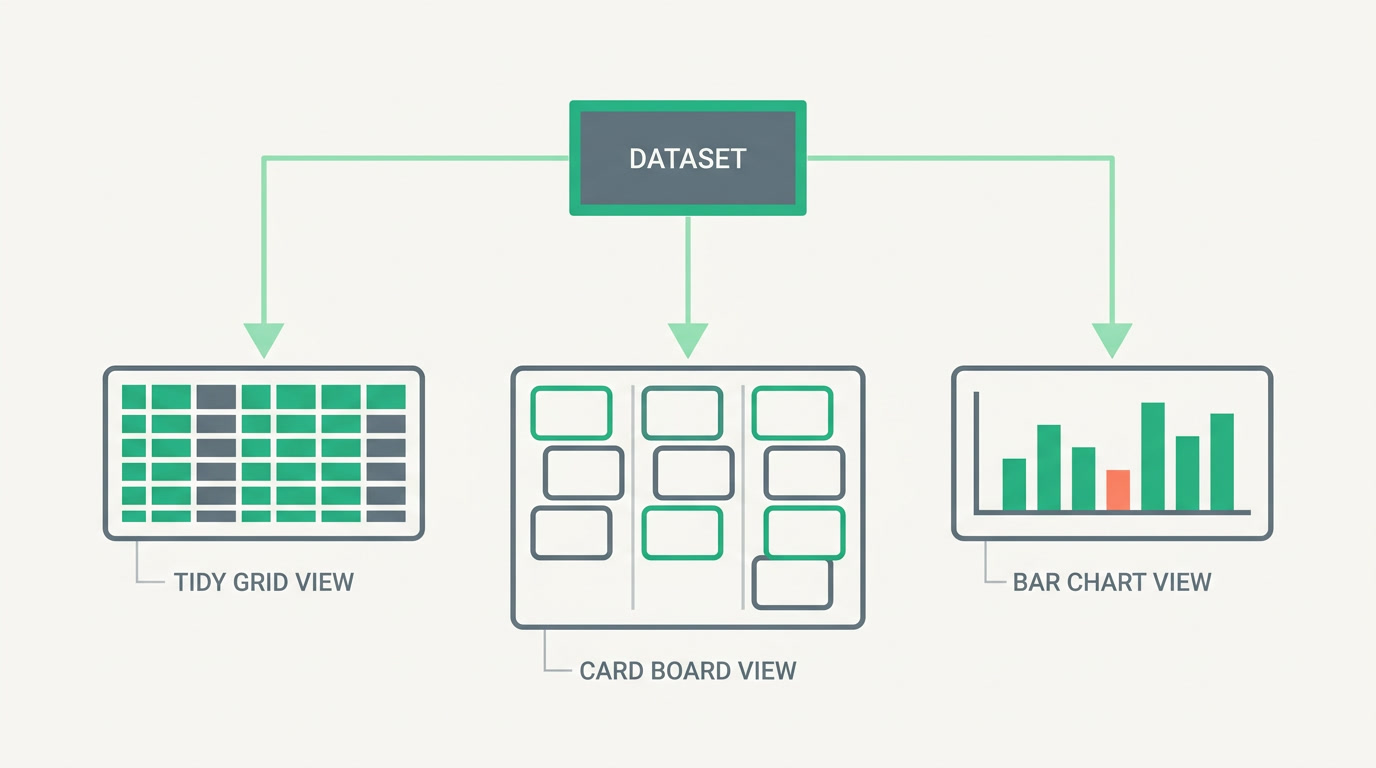
The List view is the classic table view for any CRM module: leads, contacts, deals, or anything you build. Records sit in rows, fields sit in columns you can choose and reorder, and you can sort, filter, act on one record, or bulk-edit many at once. It is one of several view modes you switch between on the same data.
Every module in ERPnBox opens on a view, and the List is usually where you land. From the same list you can flip to a Kanban board, a chart view, a calendar, or the cards — the records don't move, only the way you look at them does. When you need to read one record in full, you open its detail view. The List is for breadth; the detail page is for depth.
When is the List view the right lens?
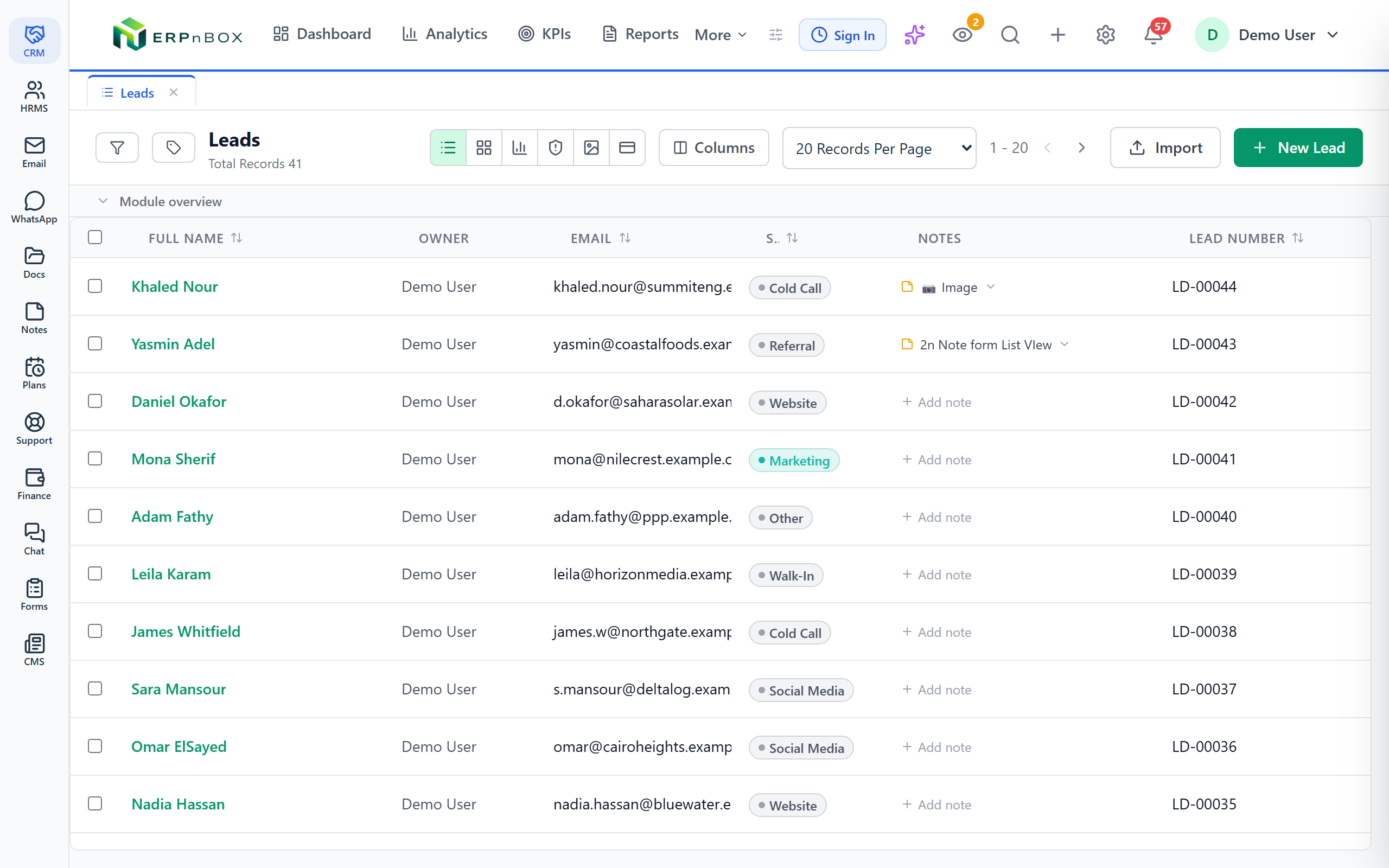
Reach for the List whenever the job is scanning, comparing, or working on many records at once. A Kanban board answers "what stage is each deal in?" A List answers "show me all 800 open leads, newest first, with their owner and last touch, so I can act." When the work is a batch, the grid wins.
- Scanning a large set — 500 leads that came in this week, and you want to eyeball owner, source, and status down clean columns.
- Bulk work — reassign forty untouched leads to a new rep, or change a status field on a whole selection in one move.
- Sorting to find the extremes — largest deals first, or oldest untouched records at the top so nothing quietly rots.
- Exporting or reporting a flat table — a filtered, sorted grid is the natural shape for a spreadsheet handoff.
Rule of thumb
If you're about to do the same small thing to many records, switch to the List first. If you're about to do many things to one record, open its detail page instead.
How do you choose which columns to show?
Open the column chooser on the list, tick the fields you want as columns, untick the noise, and drag to reorder. The grid updates as you go. A List that shows the five fields you actually decide on beats one that shows thirty — you don't want to scroll sideways to make a call, so keep columns to what you act on.
To sort, click a column header; click again to reverse it. Combine that with the filter panel — pick a field, an operator, and a value — and you've carved a big module down to exactly the rows that need you: "owner is me, status is open, created this month," oldest first. Happy with the setup? Save the view. It keeps your columns, sort, and filter together so the next visit opens straight into the working list, and you can save several for different jobs.
| Control | What it does | Typical use |
|---|---|---|
| Column chooser | Pick, hide, and reorder the fields shown as columns | Show only owner, status, and last touch |
| Sort | Click a header to order by that field, click again to reverse | Oldest untouched leads at the top |
| Filter panel | Narrow rows by field, operator, and value | My open deals created this quarter |
| Bulk edit | Select many rows and change a field or owner at once | Reassign 40 leads to a new rep |
| Saved view | Store columns, sort, and filter as a reusable view | "Today's follow-ups" ready every morning |
How do inline actions and bulk edit work?
Every row carries inline actions — open, edit, or work the record without leaving the grid — so you can move down a list handling one after another. When you need to touch many, tick the checkboxes and bulk-edit the selection: set an owner, change a status, or apply the same field value across all of them in a single confirm.
Adding records is just as fast: quick-add drops a new record in without a full page detour, and when you do open records to edit them, they stack as workspace subtabs in a tab strip — so bouncing between three deals feels like flipping browser tabs, not losing your place. And because the same underlying records power a global search and the duplicate manager, the tidy list you scan is the same clean data everywhere else.
A grid earns its keep the day you reassign forty stale leads in one selection instead of forty clicks.
Do I need to build the List view myself?
No. Every module ships with a List view already working, and every other view mode sits one click away on the same records. You don't write code — you configure: choose columns, set a sort, save the filtered views your team lives in. When you're ready, compare it against all the view types and pick the right lens per task.
See your records in a grid that actually works for you
Choose columns, sort, filter, and bulk-edit — then save the view. Start free and set up your first module in minutes.
Try ERPnBox freeFrequently asked questions
Can I sort the list by more than one column?
Click any column header to sort by that field, and click it again to reverse the order. Pair the sort with the **filter panel** to narrow the rows first — filter to your open deals, then sort by value — so the top of the grid is exactly what you want to act on.
How do I change which columns appear?
Open the **column chooser** on the list, tick the fields you want to see, untick the rest, and drag to reorder them. Keep it lean — the columns you actually decide on. Save it as a view and those columns come back every time.
Can I edit several records at once?
Yes. Tick the checkboxes on the rows you want, then **bulk-edit** the selection — set an owner or change a field value across all of them in one confirm. It's the fastest way to reassign leads or update a status on a whole batch.
What's the difference between the List view and the detail view?
The **List** shows many records as rows so you can scan, compare, sort, and work in bulk. The [detail view](/features/crm-detail-view-columns) opens one record in full — every field, its activities, and related data. Use the List for breadth, the detail page for depth.
Do my saved lists stay when I come back?
Yes. A **saved view** stores your columns, sort order, and filters together, so the next time you open the module it loads straight into that working list. You can save several — "today's follow-ups," "stale leads," "my open deals" — and switch between them.